


I needed to fix a client name and a payment date in a contract last week. Two minutes of work, and Adobe wanted a subscription for it.
That felt disproportionate, so I went looking at what else exists. What I found reframed how I would tell anyone to shop for this.
Some of these tools sell you a licence once and you own it. Others bill you monthly forever for the same core editing. Almost nobody puts those two paths side by side with real numbers.
So here are the numbers, plus the nine options worth knowing about.
Why Editing a PDF Is Harder Than It Looks
Worth understanding before you spend anything, because it explains why these tools differ so much in quality.
A PDF does not store text the way a word processor does. There are no paragraphs, no flowing lines, no structural relationship between one sentence and the next.
What it stores is a set of glyphs with coordinates. This character, this font, at this exact position on the page.
So when an editor lets you change a word, it is not editing text. It is reconstructing where a paragraph probably was, removing the affected glyphs, and repositioning the rest to look continuous.
That reconstruction is the hard part, and it is where cheap tools fall over. Formatting breaks, fonts substitute, spacing drifts.
It also explains Apple's design decision. Preview does not attempt that reconstruction at all.
Apple says so plainly in its Preview user guide, stating that you cannot edit existing PDF text there.
Once you know that, the category makes more sense. You are not paying for features. You are paying for how well a tool guesses at structure that was never stored.
Start With What You Already Have
Every Mac ships with Preview, and it covers more than people expect.
Annotations, signatures, page reordering and merging, form filling, and a redaction tool that permanently removes selected text once the document closes.
Where it stops is editing text already in the document, running OCR on scans, and handling complex forms.
If your needs sit on the first list, stop here. You do not need any of the paid options below.
The Licence Maths, Run Properly
Here is the calculation I wanted before spending anything, using current prices rather than the promotional figures still circulating.
Adobe Acrobat Pro is subscription only, at roughly $239.88 a year. There is no perpetual option at any tier.
Over three years that is about $720.
PDFelement offers both routes. Around $79.99 a year, or $129.99 once for a perpetual licence.
Run the breakeven. The perpetual licence pays for itself against the annual plan at about twenty months, not the twelve or sixteen some articles claim.
Against Adobe it is far faster. $129.99 once versus $239.88 a year means you are ahead inside seven months, and roughly $590 ahead across three years.
UPDF sharpens it further at $39.99 a year or $69.99 perpetual, covering four devices.
So the first question is not which tool has the best AI. It is whether a perpetual licence exists at all. If it does, and you are not buying enterprise compliance, that is usually the cheaper road.
The same principle turned up when I looked at SEO tools for Mac, where the native versus cloud split mattered more than the feature lists.
The Nine Worth Knowing
Apple Preview, free and already installed.
PDFgear, the strongest free alternative.
PDF Expert, the most native Mac experience.
PDFelement, the clearest perpetual licence saving.
UPDF, the budget pick with real AI features.
Foxit, for teams needing compliance.
Adobe Acrobat Pro, the industry standard.
Nitro PDF Pro, for people coming from Office.
ABBYY FineReader, for serious OCR work.
Side by Side
Tool | Best for | Price | Perpetual licence |
|---|---|---|---|
Preview | Annotation and signing | Free with macOS | Built in |
PDFgear | Free full editing | Free | Free |
PDF Expert | Native Mac feel | Annual or one time | Yes |
PDFelement | Best value long term | $79.99/yr or $129.99 once | Yes |
UPDF | Budget with AI | $39.99/yr or $69.99 once | Yes |
Foxit | Compliance and teams | From about $130/yr | No |
Adobe Acrobat Pro | Industry standard | About $239.88/yr | No |
Nitro PDF Pro | Office style interface | Annual subscription | No |
ABBYY FineReader | OCR accuracy | Separate licence | Varies |
1. Apple Preview
Best for: anyone who annotates, signs and rearranges rather than rewrites.
Strengths: free, already installed, no account, and it updates with macOS automatically. The signature capture using your trackpad or camera is unexpectedly convenient.
Weaknesses: cannot edit existing text, and no OCR for scanned documents.
Skip it if you regularly rewrite contract text rather than commenting around it.
Price: free.
2. PDFgear
Best for: people who want real editing without paying anything.
Strengths: an unusually complete free tool covering editing, annotation, conversion and compression, with no subscription and no watermark on output.
Weaknesses: a younger product with a shorter track record, and support expectations should be set accordingly.
Skip it if you need enterprise support commitments or compliance documentation.
Price: free.
3. PDF Expert
Best for: Mac users who want something built for Apple rather than ported from Windows.
Strengths: it behaves like a native Mac app, follows Apple's design conventions closely, and syncs across Mac, iPhone and iPad. Short learning curve.
Weaknesses: enterprise tooling trails Adobe, and a perpetual licence does not include future major versions.
Skip it if you need audit trails or certificate based authentication.
Price: subscription and one time licence both offered. Check current tiers, since these change.
4. PDFelement
Best for: anyone wanting the clearest calculable saving over a subscription.
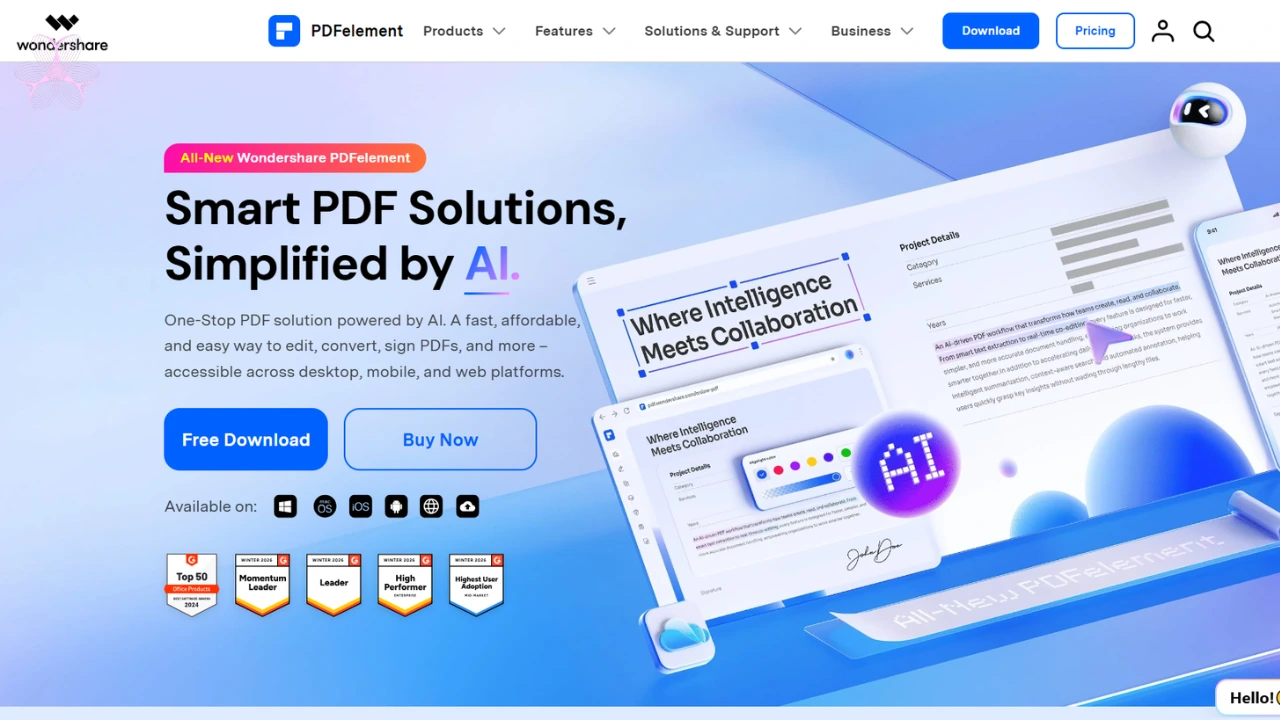 Strengths: professional editing at well below Adobe pricing, with OCR, redaction, conversion and document comparison. Version 12 added multi model AI and translation across many languages.
Weaknesses: the free trial watermarks exported files and limits conversion, so evaluate that before committing. Batch tooling trails Foxit's enterprise tier.
Skip it if you work primarily on Android or Windows across devices.
Price: $79.99 a year, or $129.99 for a perpetual licence. Student discounts exist.
5. UPDF
Best for: budget buyers who still want AI assistance.
Strengths: the strongest price to feature ratio here. One perpetual licence covers four devices, two desktop and two mobile, which is unusual value.
Weaknesses: smaller company with a shorter history, and AI features sit on a separate paid tier if you want them unlimited.
Skip it if institutional procurement requires an established vendor with support contracts.
Price: $39.99 a year, or $69.99 perpetual.
6. Foxit PDF Editor
Best for: teams needing compliance credentials alongside cloud integrations.
Strengths: enterprise features including admin console and volume licensing, an interface familiar to Office users, and integrations with common business platforms.
Weaknesses: subscription only with no perpetual option, and business tiers price above consumer alternatives.
Skip it if you are a solo user without compliance requirements.
Price: from around $130 a year for individuals, more for business tiers.
7. Adobe Acrobat Pro
Best for: professionals who need the reference implementation and accept paying indefinitely.
Strengths: the most complete toolset here, with strong OCR, redaction, comparison and signature integration. Widely recognized, which matters when clients specify it.
Weaknesses: no perpetual licence at any tier, and the interface overwhelms occasional users.
Skip it if you edit PDFs occasionally. The recurring cost is hard to defend against perpetual alternatives.
Price: about $239.88 a year.
8. Nitro PDF Pro
Best for: people arriving from Windows who want a familiar ribbon layout.
Strengths: strong formatting accuracy when editing existing text, which matters for legal and financial documents, plus solid conversion quality.
Weaknesses: subscription only, and electronic signatures require a separate product rather than being included.
Skip it if you want signing bundled without another line item.
Price: annual subscription, with tiers adding mobile and cloud storage. Verify current rates, as regional pricing varies.
9. ABBYY FineReader
Best for: anyone whose real problem is scanned documents rather than editing.
Strengths: the strongest dedicated OCR available, recognizing text across a very wide range of languages, with accuracy that general editors do not match.
Weaknesses: priced separately from general editing tools, and overkill if OCR is occasional.
Skip it if your scans are rare. General editors handle light OCR adequately.
Price: separate licensing, positioned above general editors.
What a Perpetual Licence Actually Buys
Worth being precise here, because the word lifetime does some heavy lifting in marketing copy.
A perpetual licence means you own that version indefinitely. It does not usually mean free upgrades to the next major version.
So if the product jumps from version 12 to version 13 with a redesigned interface and new features, you keep running 12. It continues working, and you are not forced to pay again.
What you generally do keep receiving is maintenance updates within your version, including compatibility fixes when macOS changes underneath it.
That distinction matters most for people who want the newest AI features as they ship. If that is you, a subscription is arguably the honest fit and the maths above matters less.
For everyone editing contracts and invoices, the version you buy today will still do that in three years, because the underlying task is not changing.
How to Test One Before You Buy
Given how these tools actually work, there is one test that separates them faster than any feature list.
Take a real document with awkward formatting. A contract with numbered clauses, a form with a table, an invoice with columns.
Change a word in the middle of a paragraph, then look at what happened around it.
A capable editor reflows the surrounding text and keeps the font consistent. A weak one leaves an obvious gap, substitutes a similar font, or pushes the line into the margin.
Then export it and open the export. Some tools look fine on screen and fall apart on save, because the reconstruction only happens in the preview layer.
Run that on the trial version before paying. It takes five minutes and tells you more than any comparison table, including this one.
One caveat worth knowing. Several tools watermark trial exports, so judge the layout rather than the watermark itself.
How I Would Choose
Annotating and signing only, stay with Preview and spend nothing.
Want real editing at zero cost, try PDFgear before paying for anything.
Want editing without a permanent subscription, compare PDFelement and UPDF perpetual licences and run the breakeven at your own usage.
Business with compliance obligations, Foxit or Adobe, where the recurring cost is easier to justify.
Coming from Windows, Nitro's layout shortens the learning curve.
Working mostly with scans, buy OCR quality directly rather than expecting it as a bundled extra.
And check for a perpetual licence before defaulting to whatever subscription appears first. That single question is worth several hundred dollars across a few years.
Frequently Asked Questions
Is Preview enough for basic PDF editing?
Yes for annotation, signing and page management. No for editing existing text or running OCR.
Why can't Preview edit PDF text?
PDFs store text as positioned characters rather than paragraphs, and Preview does not attempt to reconstruct that structure.
Which perpetual licence offers the best value?
UPDF at $69.99 is cheapest. PDFelement at $129.99 offers more depth and breaks even against its own annual plan in about twenty months.
Does Adobe offer a one time purchase?
No. Acrobat Pro is subscription only at every tier, at roughly $239.88 a year.
What is the best free PDF editor beyond Preview?
PDFgear, which covers editing, conversion and compression without a subscription or export watermark.
Which tool is best for scanned documents?
ABBYY FineReader for serious volume. PDFelement and UPDF include capable OCR for lighter use.
Is Adobe worth it over cheaper alternatives?
Only if you need its specific compliance features or signature ecosystem. General editing is well covered elsewhere.
What I Actually Did
I took the PDFelement perpetual licence for that contract edit, because the arithmetic made it obvious once I ran it against Adobe's annual figure.
It had paid for itself before I finished the second document.
The lesson is not which tool has the most features. It is asking whether you are about to rent something you could simply buy.
That question comes up more often than people check for, and it is worth thirty seconds every time.