

To choose business email for a small SaaS team, list what email must do for you first, then check each provider against that list: custom domains and aliases, security and MFA, who can read stored messages, the tools it works with, offboarding and the real cost at 10 and 25 users. In our checks, entry plans from Proton, Google and Microsoft cost almost the same, so your requirements should decide, not the price tag.
Picking an email service for a new software company is about more than choosing an online inbox. It is an infrastructure decision that shapes how support staff handle incoming requests, how customer data moves across borders, how quickly you can answer an enterprise security questionnaire, and how much admin work lands on the founders each week. Getting it wrong early usually means a painful migration later, a pile of workarounds, or a software bill that grows faster than the team.
There is no universal winner, because the right provider depends on what you need email to do for your company. A useful way to decide is to start from your requirements rather than from brand names: write down what the business needs, then check each service you are considering against that list. If privacy, security, or compliance sit at the top of your list, look for zero-access encryption and strong data protection from day one, which is the approach taken by services such as Proton Mail.
This guide walks through the criteria that matter most for a small SaaS team, the setup steps every provider requires, and a checklist you can use before you commit.
What Should a Small SaaS Team Look for in an Email Provider?
Founders often pick business email based on personal habit: whatever they already use for their own inbox becomes the company default. That is understandable, but company infrastructure deserves a wider review. A software startup uses one mail system for investor updates, billing messages, sales conversations, customer bug reports, and password reset flows, and each of those has different requirements.
Small SaaS companies need to balance easy administration with solid company controls. The mail service should grow with the business, deliver messages reliably, and keep the domain safe from future technical and security problems. Agreeing on your must-have requirements before you change your MX records prevents most of the problems teams run into later.
Custom domains and professional addresses
Sending customer messages from a free consumer address can hurt the credibility of a B2B SaaS company. Business email hosting should support custom domains smoothly, so every team member sends and receives mail from yourcompany.com. Small startups also tend to need several role-based addresses long before they have a person dedicated to each function.
A three-person founding team may already manage hello@, security@, billing@, privacy@, and support@. Your provider should let you create aliases, catch-all addresses, and routing rules without forcing you to buy a full user seat for every shared mailbox. When comparing plans, check how many custom domains and addresses are included per user, whether a catch-all is available, and how routing to several people works. This keeps costs down while still giving customers a professional experience.
Security and account protection
Email is the master key to much of a SaaS business. If a founder's inbox is taken over, an attacker can often reset passwords for your domain registrar, hosting accounts, cloud console, payment processor, and code repositories. At a minimum, your provider should support:
multi-factor authentication (MFA), including hardware security keys based on FIDO2/WebAuthn
the ability to see and revoke active sessions
admin-level policies, such as requiring MFA for every member of the organization
activity or login logs that help you investigate suspicious access
Also check how the provider protects you from phishing and spoofed messages. Clear warnings on suspicious senders, link protection, and tracker blocking all reduce the risk that one rushed click turns into a breach.
Privacy, encryption, and data location
Many providers encrypt messages in transit and at rest, but that alone does not tell you who can read them. The key question is who holds the encryption keys. With standard encryption at rest, the provider holds the keys and can technically access stored messages, for example in response to a legal request or through an internal incident. With zero-access encryption, messages are stored in a form that only the account holder can unlock, so the provider cannot read them.
For a SaaS company that handles customer data, this difference shows up in sales conversations. Enterprise buyers increasingly ask where your communications are stored, who can access them, and under which jurisdiction. Before you subscribe, check:
where the provider stores data and which country's laws apply to it
whether it offers a Data Processing Agreement (DPA) you can sign
whether provider staff can read stored messages
whether the provider's business model depends on analyzing user data
Everyday tools and integrations
Email rarely works alone. Your team will want calendars, contacts, and probably file sharing that work well with the inbox. Decide early whether you prefer a provider's own apps or want to keep using desktop clients such as Apple Mail, Outlook, or Thunderbird, because providers handle this differently. Some expose standard IMAP and SMTP directly. Others, especially encrypted services, connect desktop clients through a small local helper app that encrypts and decrypts messages on your device.
Think about identity as well. If you plan to manage logins across your tools through an identity provider such as Okta or Microsoft Entra ID, check which of the provider's products support single sign-on (SSO), as coverage can differ from one product to another.
Administration and offboarding
Account recovery and data ownership matter as soon as you hire. If an employee leaves without notice, an admin should be able to remove their access in minutes, reassign their addresses, and keep the business-critical messages they were handling. Check whether the admin panel lets you create and suspend users, manage storage, enforce security policies, and recover accounts without contacting support.
Pricing that scales with the team
Most business email is priced per user per month, so the real cost depends on how you structure mailboxes. Compare plans on the full picture, not just the headline price: included storage, number of custom domains and addresses, availability of catch-all and aliases, and whether features you need, such as desktop client support or advanced admin controls, are reserved for higher tiers.
We priced this out ourselves, and the result surprised us a little. At the entry level, the three providers most small SaaS teams compare cost almost exactly the same, so the headline price will rarely be what decides it. We cover the numbers in the cost section below.
How to Set Up Business Email for a Small SaaS Team
Moving from personal email to an authenticated business mail system is a major step for a startup. Skipping DNS and security settings can send sales messages, onboarding emails, and invoices straight to spam. Whichever provider you choose, setting up your domain follows the same basic sequence.
Setting up authentication early protects your brand from spoofing, builds trust with the large mailbox providers your customers use, and keeps delivery reliable as your customer list grows.
Choose a domain and create role-based addresses
Start with a clean, professional domain for your main product. Many SaaS companies use one domain, such as getyourproduct.com or yourproduct.io, for both the website and business email. After registering the domain, plan your mailbox structure before creating any user accounts.
Choose a consistent naming style for founders and early employees, such as first@yourcompany.com or first.last@yourcompany.com. Then list the shared addresses you need from the start:
support@ or help@ for technical questions
billing@ or finance@ for payments, receipts, and accounting questions
security@ for vulnerability reports and enterprise security forms
privacy@ for GDPR questions and data deletion requests
Set these up as aliases, groups, or forwarding rules that deliver to active team members. This avoids paying for separate user accounts that do not belong to individual employees, and it means a shared address keeps working when someone leaves.
Configure MX, SPF, DKIM, and DMARC records
DNS records are one of the main factors in getting messages into inboxes. Receiving mail servers are suspicious of domains that cannot prove which systems are allowed to send on their behalf. Sign in to your DNS host, such as Cloudflare, Route 53, or your domain registrar, and add the four types of records below. Your provider's setup wizard will show the exact values for your domain. The examples here use Proton Mail's values for illustration.
MX (Mail Exchange) records: These tell the internet where to deliver mail for your domain. Point them only to your chosen provider's servers and remove records left over from previous hosts, since mixed MX records cause lost mail. For Proton Mail, for example, the records are mail.protonmail.ch with priority 10 and mailsec.protonmail.ch with priority 20.
SPF (Sender Policy Framework): SPF is a DNS TXT record that lists the servers allowed to send mail for your domain. A basic record looks like v=spf1 include:_spf.protonmail.ch ~all. Keep only one SPF record per domain. If you also send mail through other services, such as a transactional email platform or your CRM, add their include: entries to the same record instead of creating a second one.
DKIM (DomainKeys Identified Mail): DKIM adds a cryptographic signature to every message your team sends. Your provider gives you a public key, or CNAME records pointing to one, to add to your DNS. Receiving servers use it to confirm that the message came from an approved system and was not altered on the way. Providers that use CNAME records can rotate keys automatically, which saves you a maintenance task.
DMARC (Domain-based Message Authentication, Reporting, and Conformance): DMARC builds on SPF and DKIM and tells receiving servers what to do with messages that fail those checks. Start with a monitoring policy such as v=DMARC1; p=none; rua=mailto:dmarc-reports@yourcompany.com so you can review reports. Once you are confident that every legitimate sender passes, move to p=quarantine and then p=reject to block messages pretending to come from your domain.
After adding the records, send test messages to a few external mailboxes and check the message headers to confirm that SPF, DKIM, and DMARC all pass.
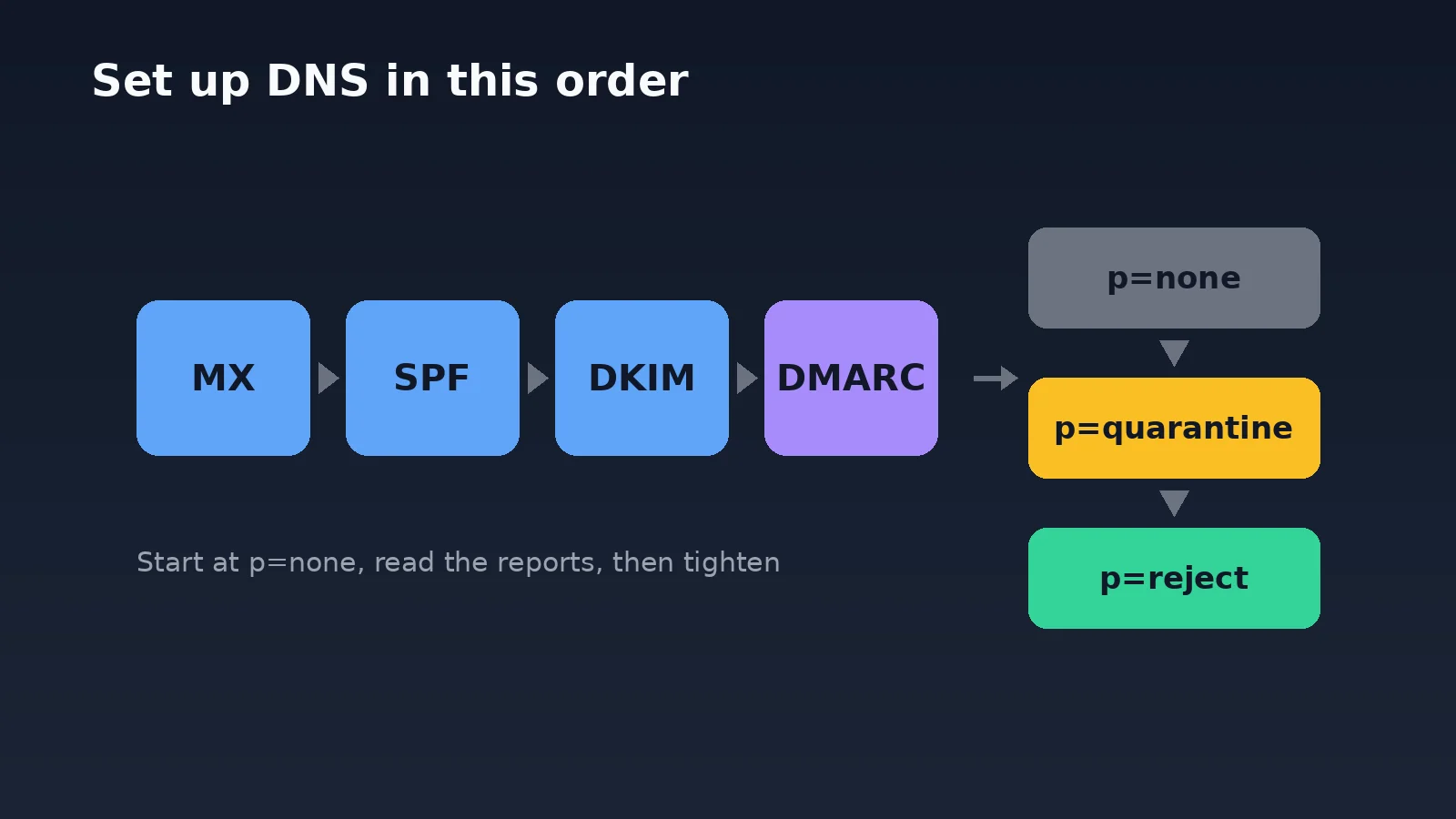 Set up the records in this order, and tighten DMARC step by step.
One note from us on the DMARC step. Starting at p=none is the standard advice, and it is what Gmail asks for as a minimum. Proton's own help pages go one step further and recommend p=quarantine for most domains once your senders pass, which matches what we saw on real SaaS domains in our test below.
Remember your product's own emails
Most SaaS products send transactional email, such as sign-up confirmations, password resets, and receipts, through a dedicated sending service rather than through the team's mailboxes. Plan for this when you set up DNS. Many teams send product email from a subdomain such as mail.yourproduct.com or notify.yourproduct.com, which keeps its reputation separate from your team's everyday correspondence and keeps your main SPF record simple.
Migrate messages, contacts, and calendars
If you are moving from an old shared host or from personal mail accounts, move your data in an organized way so nothing gets lost. Most business email providers offer an import tool that connects to your old account over IMAP, or through a direct sign-in for the largest providers, and copies messages, folders, contacts, and calendars in the background. Proton Mail, for example, includes Easy Switch, which imports existing messages, contacts, and calendars and stores them with zero-access encryption once they arrive.
To keep the switch smooth:
lower the TTL on your MX records a day before the change, so the update spreads quickly
tell the team when the switch will happen, since new mail will start arriving in the new inboxes
keep the old accounts active for a few weeks to catch stragglers, and set up forwarding where possible
update the email address on critical accounts, such as your registrar, cloud provider, and payment processor, as soon as the new mailboxes work
We Checked the Email DNS of 20 SaaS Companies
We wanted to see how real SaaS companies set up the records described above, so on 24 November 2026 we looked up the public DNS of 20 well-known SaaS brands using Google Public DNS. We checked their MX records, their SPF record and their DMARC policy. Anyone can see these records, so this is a fair way to learn from companies that already handle a lot of email.
We started with Proton itself, since this guide uses its values as the example. Its MX records match what the guide shows, with mail.protonmail.ch at priority 10 and mailsec.protonmail.ch at priority 20.
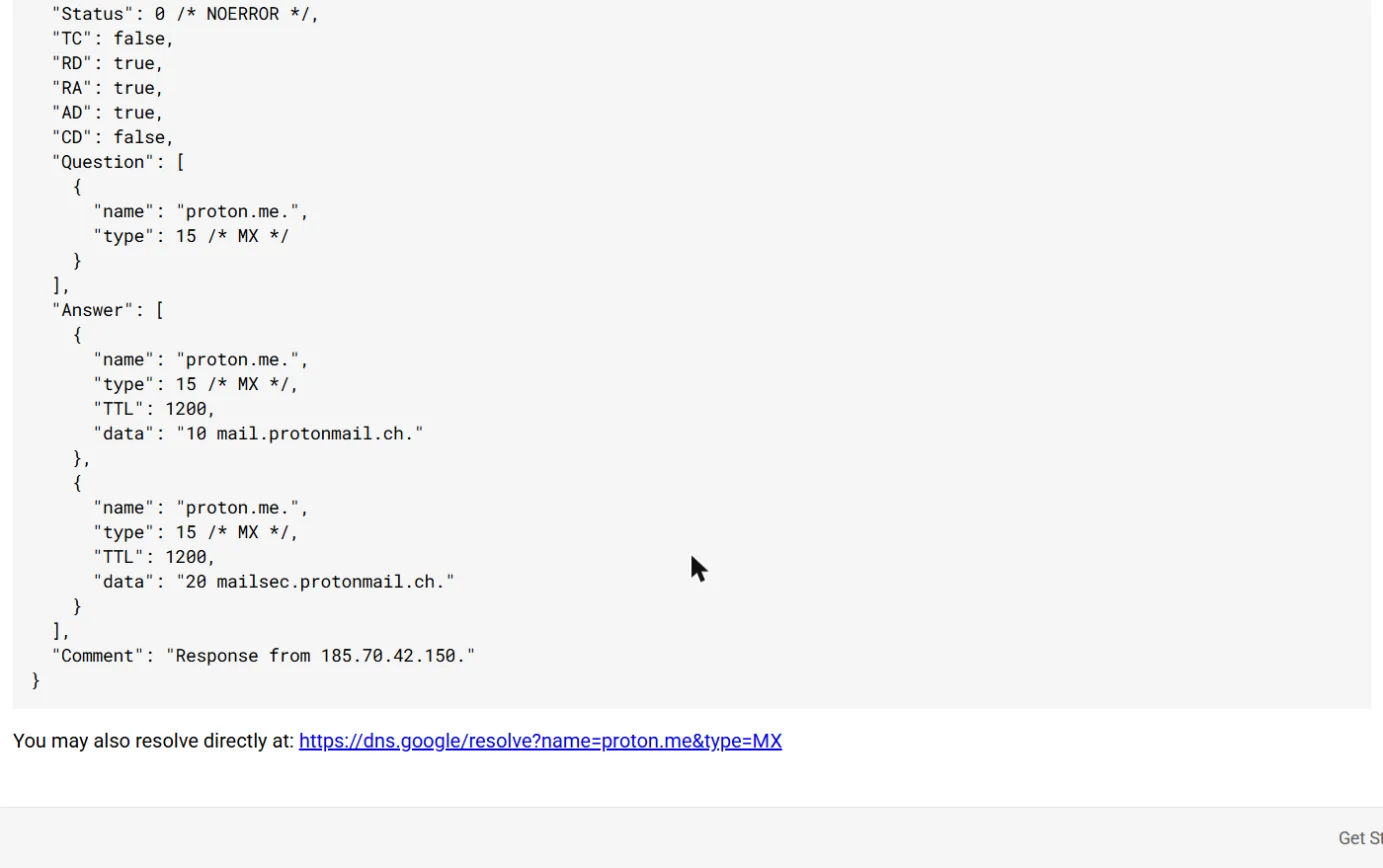 Proton's own MX records, looked up with Google Public DNS.
Its DMARC record uses p=quarantine, with strict alignment for both SPF and DKIM.
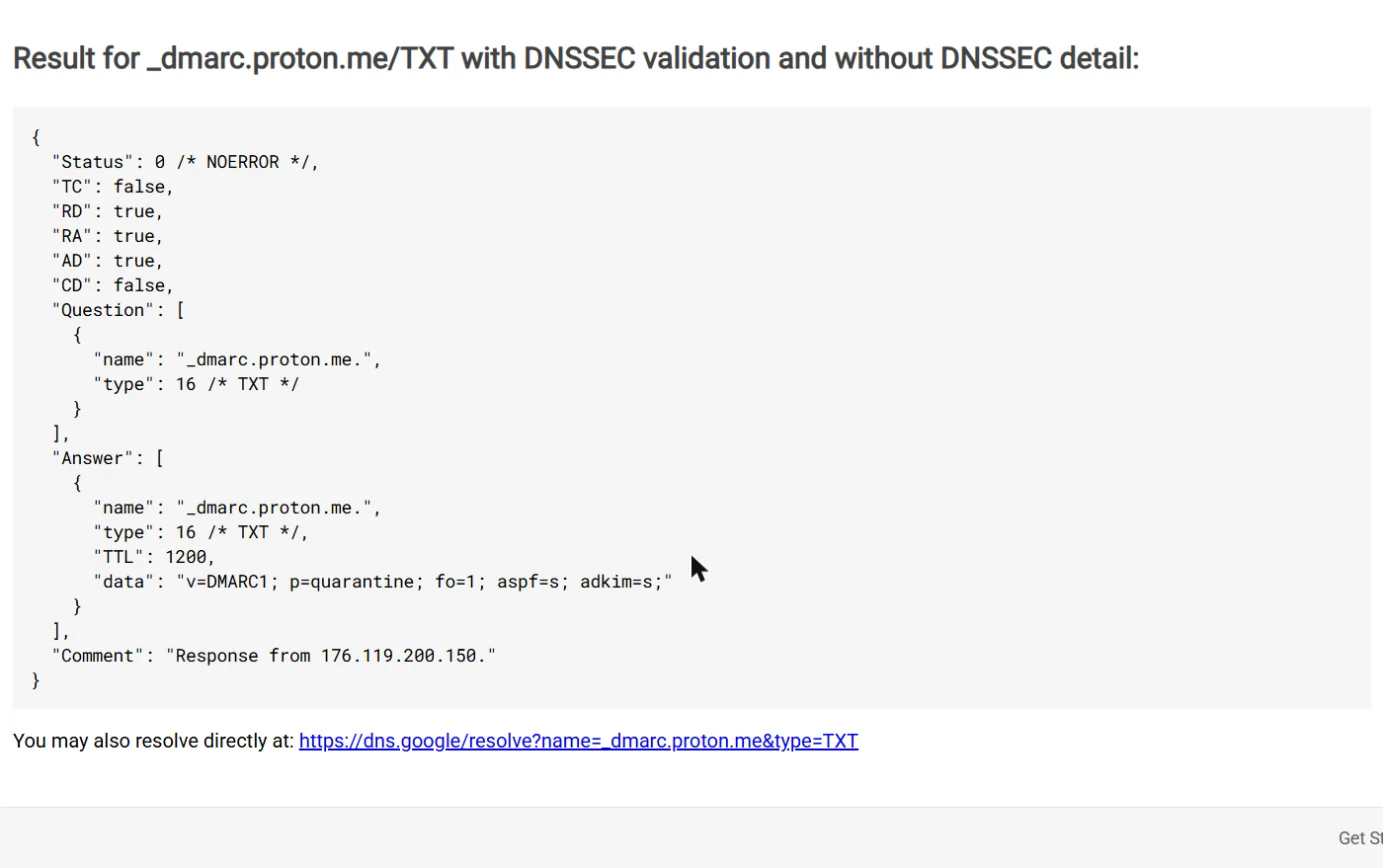 Proton's DMARC record, set to p=quarantine.
Then we ran the same checks on 19 other SaaS domains, including Slack, Figma, Zoom, HubSpot, Canva, Notion, Asana, Zapier, Dropbox and Shopify.
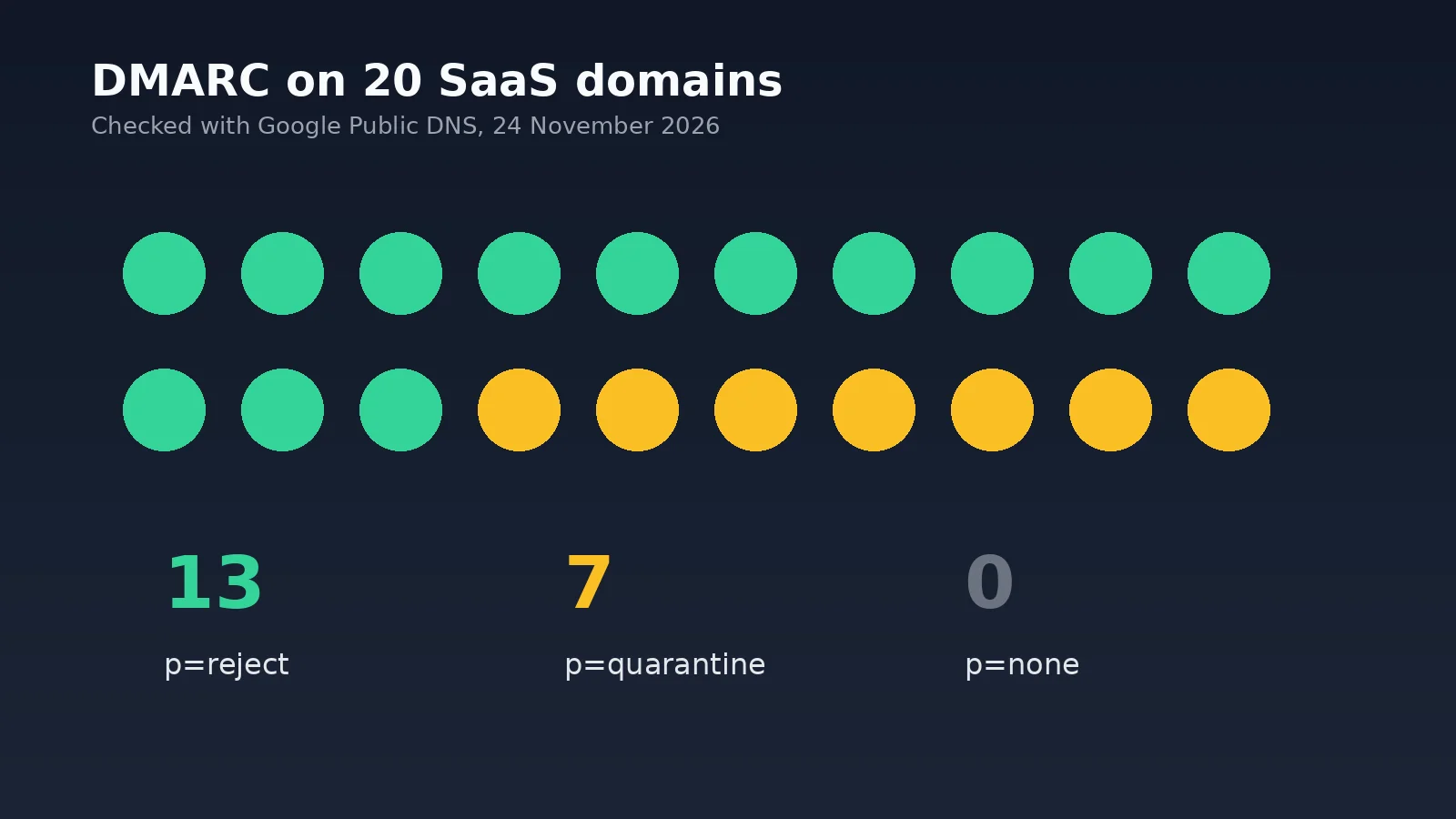 DMARC policies on 20 SaaS domains we checked.
Here is what we found:
Every domain had exactly one SPF record. Not one of the 20 broke the "one SPF record per domain" rule from the setup steps above.
Not one domain stayed at p=none. 13 used p=reject and 7 used p=quarantine. Monitoring mode is a starting point, not a place to stay.
Most use Google for team email. 14 of the 20 pointed their MX records at Google, 3 used a security gateway in front of their mail, 1 used Proton, 1 used another host, and Notion published no MX record on its main product domain at all, because its team email runs on a separate domain.
Many SPF records were long. Slack, Zoom and Figma list several outside services, such as a CRM, a help desk and a transactional email platform, in one record. That is exactly the pattern the guide recommends, and it shows how quickly the record grows once a company adds tools.
Our takeaway: the setup steps in this guide are not extra polish. They are what established SaaS companies already do. If you also plan to send product email at volume, note that Google's email sender guidelines require SPF, DKIM and DMARC for anyone sending more than 5,000 messages a day to Gmail accounts.
A Practical Decision Checklist Before You Subscribe
Choosing an email provider means matching your company's priorities with what each service actually offers. Before adding the company card and changing your MX records, go through these questions with your founding team and note how each service you are considering answers them.
Who can read your stored messages? If you work in healthcare, cybersecurity, legal tech, or fintech, or your customers require that no third party can read your internal communications, make zero-access encryption a hard requirement rather than a nice-to-have.
Where will your data live? If you sell to European customers or regulated industries, check data location, the governing jurisdiction, and whether a DPA is available before you sign up.
Which tools must email work with? List the calendar, file storage, and desktop apps your team relies on, and check whether each works natively or needs a helper app.
How many addresses and domains will you run? If you operate several products or need many role addresses, compare how many custom domains and addresses each plan includes and whether catch-all is supported.
How will you manage identity and access? Decide whether you need SSO through an identity provider, and confirm which products support it. Check MFA enforcement, session management, and offboarding tools in the admin panel.
What will it cost at 10 and 25 people? Model the price at your next two growth stages, including the features you will need by then, not just the starter plan.
What Business Email for a Small SaaS Team Really Costs
The checklist above asks what email will cost at 10 and 25 people, so we worked it out. We used each provider's entry business plan at list price, billed yearly. Proton's pricing page was showing a loading error on the day we checked, so its figures come from its published plan prices.
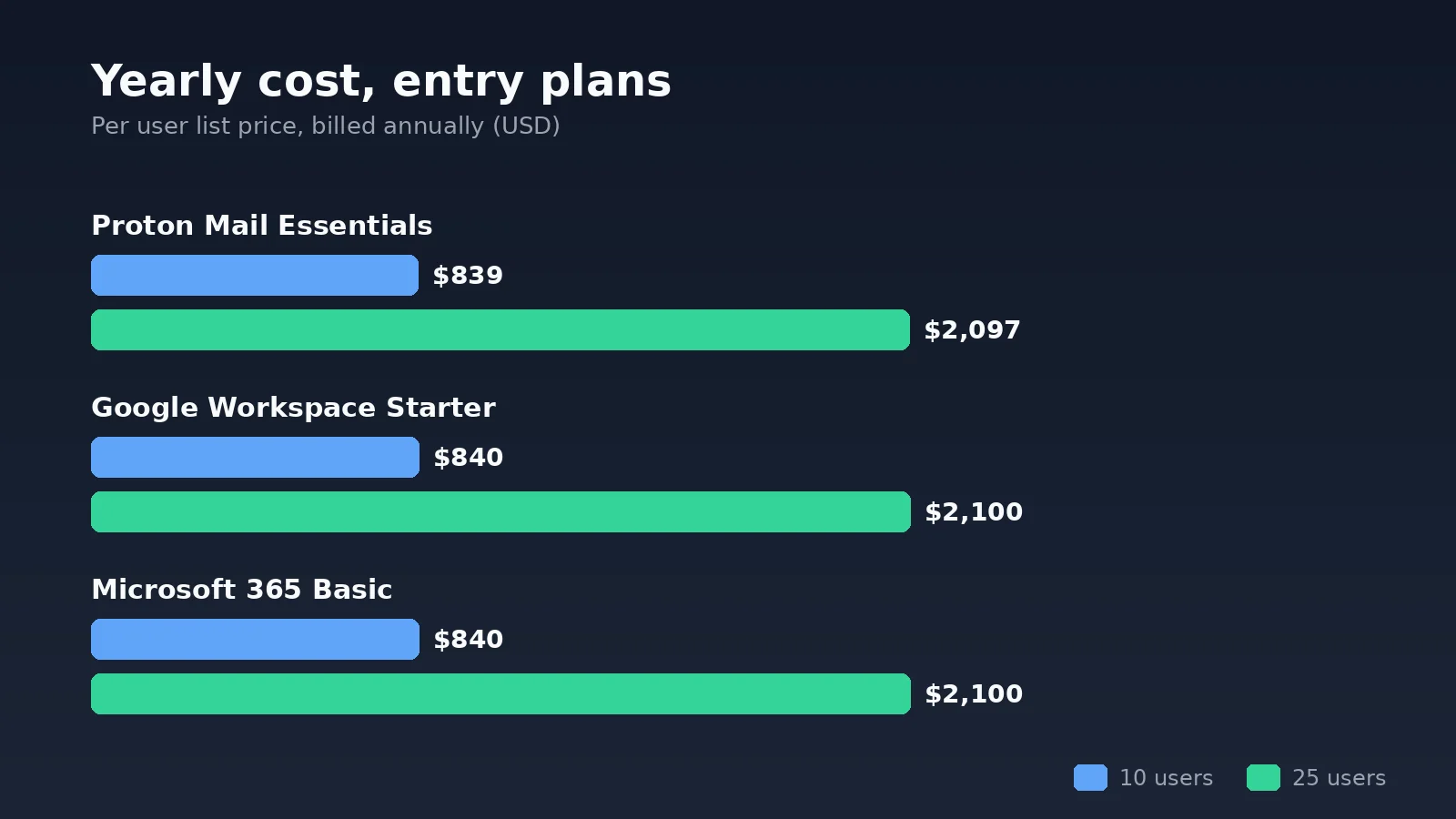 Yearly cost of entry plans for 10 and 25 users.
Proton Mail Essentials costs $6.99 per user a month, or about $839 a year for 10 people and $2,097 for 25. It includes 3 custom domains, 10 addresses per user and catch-all.
Google Workspace Business Starter costs $7 per user a month, or $840 and $2,100 a year.
Microsoft 365 Business Basic rose from $6 to $7 per user a month in July 2026, which also comes to $840 and $2,100 a year.
So at the entry level, the gap between the three is a few dollars a year. The bigger difference shows up one tier higher. Proton Workspace Standard is $12.99 per user a month, while Google Workspace Business Standard and Microsoft 365 Business Standard are both $14. For 25 people, that is about $3,897 a year with Proton against $4,200 with the other two.
The cheapest saving is not the plan at all. It is the alias tip from earlier. If a small team pays for five shared mailboxes such as support@ and billing@ as full seats, that alone adds about $420 a year on an entry plan. Set them up as aliases or groups instead.
Whichever provider you pick, keep a copy of your data you control. If you go with Microsoft, our guide to Microsoft 365 backup explains why the built-in retention is not a full backup.
Beyond the Inbox: Long-Term Architecture for Growing SaaS Teams
Once business email is running, your attention will return to building the product and helping customers. As the company grows, though, your email setup will come up in vendor reviews, security questionnaires, and investor due diligence. Enterprise B2B customers often ask how you classify data, how quickly you remove an employee's access, and how stored messages are protected. A clear answer, such as "our email is stored with zero-access encryption, MFA is enforced for every account, and access is revoked on the day someone leaves," shortens those reviews considerably.
To keep your communications ready for growth, ban personal inboxes for company work from the start. Requiring corporate email for every internal system keeps customer agreements, company knowledge, and discussions about intellectual property inside the business instead of scattered across personal accounts and devices.
Write down your account recovery steps, store recovery codes somewhere safe and offline, and protect your domain registrar account with its own strong MFA. Even an encrypted email service cannot protect the company if an attacker takes control of the domain's DNS settings.
Finally, treat your business email provider as a core part of your company's digital identity, not as a temporary web app. Start from your requirements, check each option against them honestly, and you can build a dependable communication system that supports the company as it grows.
FAQ
What is the best business email for a small SaaS team?
There is no single winner. If privacy and compliance come first, a provider with zero-access encryption such as Proton Mail fits best. If your team lives in Docs and Sheets, Google Workspace is the natural choice, and if you already use Windows and Office, Microsoft 365 makes sense. At entry level, all three cost about $7 per user a month.
How much does business email cost per user?
Entry business plans cost about $7 per user a month when billed yearly: $6.99 for Proton Mail Essentials, $7 for Google Workspace Business Starter and $7 for Microsoft 365 Business Basic. Plans with more storage and collaboration tools cost about $13 to $14.
Do I need SPF, DKIM and DMARC for a small team?
Yes. They stop others from sending mail as your domain and help your messages reach inboxes. Gmail requires SPF or DKIM from all senders, and all three from anyone sending more than 5,000 messages a day to Gmail accounts. In our check of 20 SaaS domains, every one had SPF and DMARC in place.
Should shared addresses like support@ be separate user accounts?
Usually not. Set them up as aliases, groups or forwarding rules that deliver to the right team members. This saves the cost of extra seats and keeps the address working when someone leaves.
Can I switch business email providers later?
Yes, but it takes work. You will need to change your MX, SPF and DKIM records, import old messages, contacts and calendars, and update the email address on important accounts. Choosing carefully at the start saves a migration later.