


Microsoft 365 backup is essential because Microsoft only keeps deleted data for a short time. By default, deleted emails stay recoverable for 14 days (30 at most), and deleted SharePoint and OneDrive files for 93 days. After that, the data is gone unless a retention policy or a separate backup holds a copy. For a 25-user business, a third-party backup costs roughly $88 a month, while Microsoft's own per-GB backup is cheaper only if each user stores less than about 23 GB.
Microsoft 365 has become essential infrastructure for businesses of all sizes. From Exchange Online and Microsoft Teams to OneDrive and SharePoint, organisations increasingly rely on Microsoft’s cloud services to store, manage, and collaborate on critical business information.
While Microsoft provides extensive security, redundancy, and availability features, many organisations mistakenly assume that everything stored in Microsoft 365 is automatically protected against every form of data loss. The reality is more complicated.
Accidental deletion, ransomware, compromised administrator accounts, malicious insiders, and retention policy limitations can all create situations where important business information becomes difficult or impossible to recover. As businesses prepare their IT strategies for 2027, independent Microsoft 365 backup should be considered an important component of their data protection and business continuity planning.
To make this guide practical, we went beyond the theory. We checked Microsoft's own documentation for how long deleted data stays recoverable, and we priced native and third-party backup for a typical 25-user business. Both results are below.
Understanding Microsoft’s Shared Responsibility Model
Microsoft operates and maintains the infrastructure behind Microsoft 365, including its data centres, networking, hardware, and cloud services. However, infrastructure availability and customer data recoverability are not the same thing.
Microsoft provides built-in data protection capabilities, including version history, recycle bins, retention policies, and recovery tools. Their effectiveness depends on the service, configuration, retention settings, and circumstances surrounding the data loss. An organisation might have retention policies for Exchange Online but lack equivalent protection for important SharePoint documents.
Businesses, therefore, need to understand which data is protected, how long it remains recoverable, and what happens if their Microsoft 365 environment is compromised. Independent backup adds another recovery layer outside the organisation’s primary Microsoft 365 environment.
How Long Microsoft 365 Keeps Deleted Data
The phrase "how long it remains recoverable" is the key to this whole topic, so we looked up the real numbers in Microsoft's documentation.
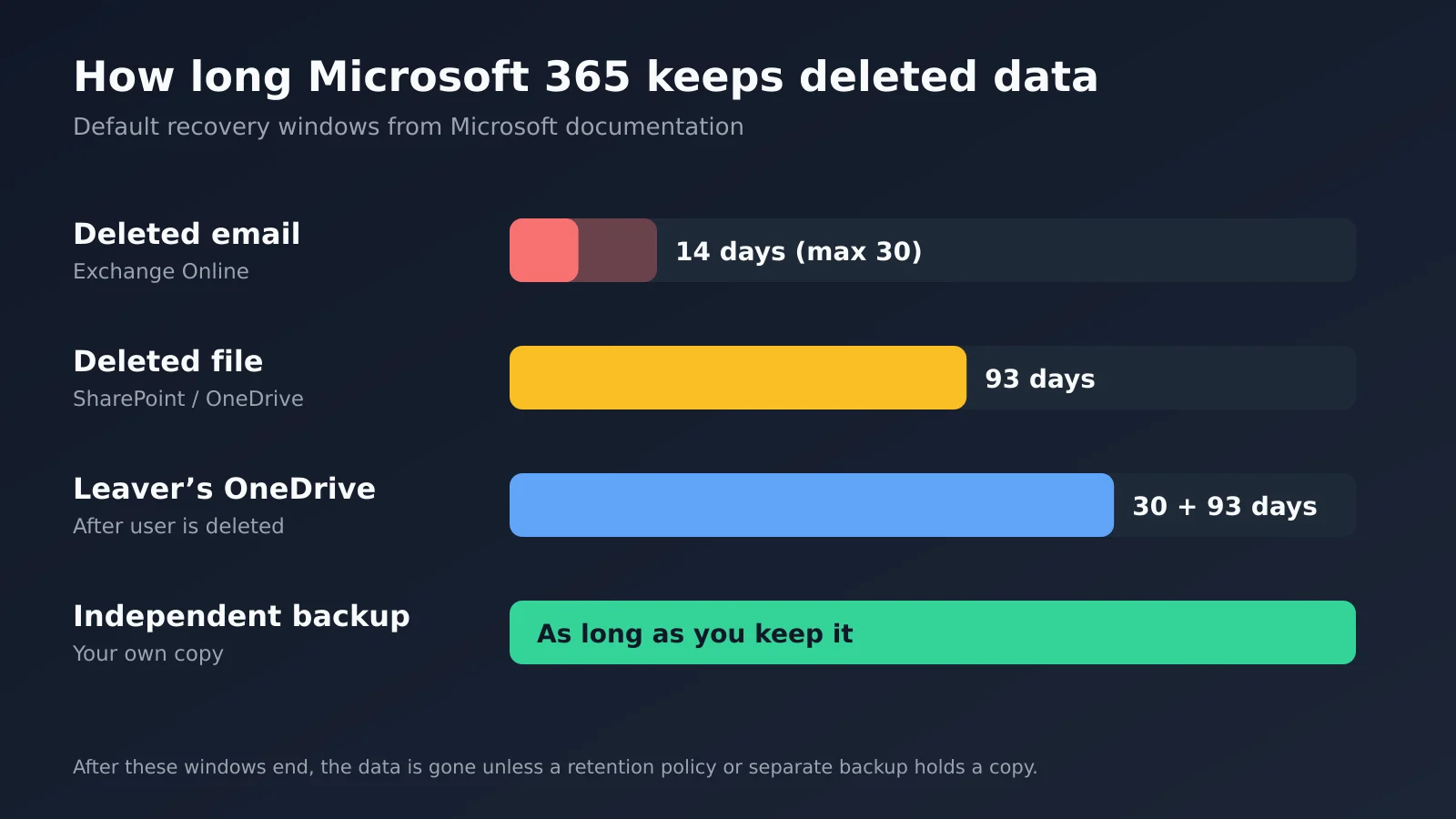 How long Microsoft 365 keeps deleted email, files and leaver data by default.
Here is what we found:
Deleted email: Exchange Online keeps deleted items for 14 days by default. An admin can raise this to 30 days, but no higher.
Deleted files: SharePoint and OneDrive keep deleted files for 93 days in total across both recycle bins. The clock starts on the day of deletion, so the second-stage recycle bin does not add extra time.
A leaver's OneDrive: When a user is deleted, their OneDrive is kept for 30 days by default. It then moves to the site collection recycle bin, where it stays for 93 days.
These windows are fine for a quick "oops, I deleted that" moment. They are not fine when someone notices a problem four months later, which happens more often than most teams expect.
Five Common Microsoft 365 Data Loss Scenarios
1. Accidental Deletion
Employees routinely delete emails, documents, and folders. Most deletions can be reversed quickly, but information may be difficult to retrieve when the loss is discovered after the relevant recovery period expires. Independent backup can provide additional recovery points.
With email, that recovery period can be as short as 14 days.
2. Ransomware and Malicious File Changes
Compromised accounts or synchronised devices can result in files being encrypted, overwritten or deleted. OneDrive and SharePoint version history may help, but organisations should not assume every ransomware incident can be resolved that way. A separate backup provides another recovery path, especially when protected by independent access controls.
Backup is the last line of defence, not the first. Most ransomware gets in through known holes in devices and apps, which is why we always pair backup with regular software patching on every laptop that syncs with OneDrive.
3. Compromised Administrator Accounts
Privileged accounts can affect multiple Microsoft 365 services. Attackers may attempt to alter security settings, delete information, or interfere with recovery. Backup systems should use strong authentication, role-based permissions, audit logs, and safeguards against unauthorised deletion. Separating backup and Microsoft 365 administration reduces the concentration of risk.
4. Employee Departures
Departing employees may leave behind valuable correspondence and files. Businesses should establish procedures for preserving required information before deleting accounts or removing licences, taking account of retention requirements and privacy obligations.
As we saw above, a deleted user's OneDrive is only kept for a limited time by default. If nobody copies those files before the window closes, they are lost.
5. Retention Policy Misconfiguration
Microsoft Purview and other management tools offer extensive retention capabilities but require careful configuration. Incorrect policies can cause data to be kept too briefly or too long. Independent backup should complement, not replace, an organisation’s retention strategy.
Why Retention Is Not the Same as Backup
Retention policies preserve or dispose of information according to legal, regulatory, and business requirements. Backup systems create recoverable copies so data can be restored after deletion, corruption, or other incidents. Although the capabilities overlap, they serve different purposes.
A retention policy may preserve historical emails for compliance, but that does not necessarily offer the same recovery workflow as restoring an entire mailbox. Similarly, operational backup does not replace legally compliant retention. A comprehensive strategy considers both.
Retention policy | Backup | |
|---|---|---|
Main goal | Keep or delete data for legal reasons | Restore data after loss |
Typical user | Compliance team | IT team |
Restore a whole mailbox quickly | Not its job | Yes |
Copy stored outside your tenant | No | Yes, with third-party backup |
What Should a Microsoft 365 Backup Solution Protect?
Exchange Online
Mailbox messages, folders, and attachments, with recovery options suited to the organisation.
OneDrive for Business
Employee documents and project files, including the ability to recover individual files or larger collections.
SharePoint Online
Relevant document libraries, collaboration sites, and associated structures.
Microsoft Teams
Teams data spans several Microsoft 365 services. Verify exactly which messages, channels, files, and associated information are supported.
This is one place where products really differ. Microsoft's own backup service lists Exchange mailboxes, SharePoint sites and OneDrive accounts as its protected workloads, and its documentation does not mention Teams chats. Third-party tools such as Loop Backup list Teams as a covered workload.
Microsoft 365 Copilot-Related Data
As AI tools become more widely adopted, verify whether and how specific Copilot-related content can be protected and recovered. Coverage varies by product and data type.
Cloud-to-Cloud Backup Simplifies Deployment
Traditional backup systems may require servers, storage appliances, agents, and ongoing maintenance. Cloud-to-cloud backup connects securely to supported cloud services and transfers protected data to separate backup storage, reducing deployment complexity for smaller IT teams.
Modern Microsoft 365 backup services such as Loop Backup provide automated cloud-to-cloud protection for supported Microsoft 365 workloads, helping organisations establish independent recovery capabilities without maintaining traditional backup infrastructure.
Loop Backup also offers assisted setup, allowing businesses to receive guidance when configuring their backup environment. However, ease of deployment should never replace verification that backups complete successfully and that protected information can be restored.
We checked this claim. Loop's site says it does the setup for free on a short Zoom call during the 14-day trial. Its Microsoft 365 page lists Exchange, SharePoint, OneDrive, Teams and Copilot, four backups a day, and immutable, encrypted storage.
Microsoft 365 Backup Cost: Native vs Third-Party
Most guides on this topic skip the money question, so we did the maths ourselves.
There are two ways to pay for Microsoft 365 backup:
Per GB. Microsoft's own backup service charges $0.15 per GB per month for protected content, billed pay-as-you-go through the Microsoft 365 admin center.
Per user. Most third-party tools charge a flat monthly fee per user, whatever the data size.
Option | Price (checked November 2026) | What it covers |
|---|---|---|
Microsoft 365 Backup | $0.15 per GB per month | Exchange, SharePoint, OneDrive |
Loop Backup | From £2.64 per user per month, 14-day free trial | Exchange, SharePoint, OneDrive, Teams, Copilot, 50 GB pooled storage per user |
Veeam Data Cloud (Foundation) | From $2.63 per user per month billed yearly (higher for small teams) | Microsoft 365 with unlimited storage |
Our Cost Test for a 25-User Business
We took a business with 25 users and changed one thing: how much data each user stores on average. Then we worked out the monthly bill.
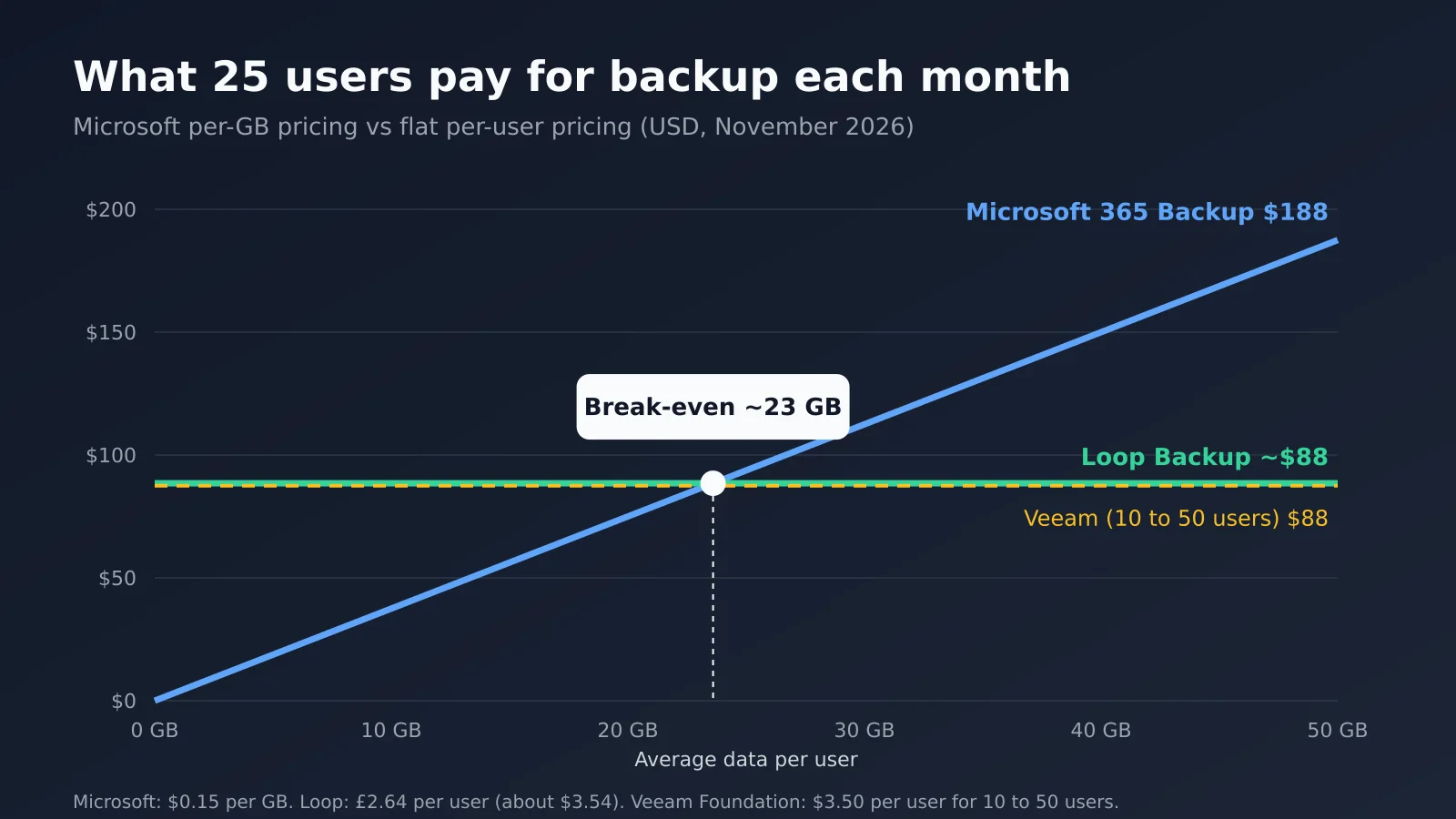 Monthly backup cost for 25 users on per-GB and per-user pricing.
What we learned:
At 10 GB per user, Microsoft's native backup costs about $38 a month. That is the cheapest option.
At around 23 GB per user, the lines cross. This is the break-even point against Loop Backup (about $88 a month at roughly $1.34 to the pound) and Veeam's small-team rate.
At 50 GB per user, Microsoft's bill climbs to about $188 a month, more than double the per-user tools.
There is one more catch with the per-GB model. Microsoft says deleted content in the recycle bins is still billed, and content is charged for 365 days after it is added to protection. So cleaning up files does not cut the bill straight away.
Our advice is simple. Check how much data your users actually store in the Microsoft 365 admin center before you choose. Small, tidy tenants can save with Microsoft's own tool. Most growing businesses with years of email and files will pay less with a per-user plan.
Data Residency and Storage Location
Data residency matters particularly to organisations in the United Kingdom and the European Union. Businesses should ask which storage regions are available, whether backup content remains in the selected region, where metadata is processed, which subprocessors are involved, and what encryption and access controls apply.
Selecting UK or European storage may support certain requirements, but residency alone does not establish regulatory compliance. Organisations should assess contracts, access controls, and applicable data protection law.
As an example of what to look for, Loop Backup lets you choose where your backup is stored: the UK (London), Europe (Amsterdam), the USA, Canada or Australia.
How Often Should Microsoft 365 Be Backed Up?
The right frequency depends on how often information changes and how much loss a business can tolerate. Recovery Point Objective (RPO) describes the maximum acceptable amount of recent data loss, measured in time. Recovery Time Objective (RTO) describes the maximum acceptable time to restore affected information or services.
A business that cannot afford to lose more than a few hours of email activity may need more frequent recovery points than one storing relatively static documents. Confirm the provider’s actual schedule, retention, and recovery limitations.
To put this in numbers: a tool that backs up four times a day gives you an RPO of about six hours. If your team sends hundreds of client emails an hour, ask the provider whether more frequent backups are possible.
Why Restore Testing Matters
A backup is useful only when its contents can be recovered. Regular tests should confirm data accessibility, recovery permissions, and administrator familiarity with the process. Examples include restoring a deleted email, retrieving an earlier document version, and recovering information from a former employee’s account.
Document test outcomes and review recovery procedures periodically. Evaluate provider support, recovery assistance, and the precise contractual terms of any restore guarantee.
We suggest a simple routine: one small restore every month and one full mailbox restore every quarter. Time each one, so you know your real RTO instead of guessing it.
Choosing the Right Microsoft 365 Backup Provider
What to check | Question to ask |
|---|---|
Coverage | Does it protect all required workloads and data types? |
Automation | Are backups scheduled and monitored automatically? |
Recovery | Can administrators recover individual items and larger collections? |
Security | Are encryption, authentication, access controls, and deletion safeguards appropriate? |
Data residency | Can the business choose a suitable storage region? |
Support | Is assistance available during setup and recovery? |
Pricing | Are licence fees, storage allowances, and additional charges clear? |
Restore testing | Can the organisation regularly verify recovery procedures? |
The best solution is not necessarily the one with the longest feature list. It is the one that offers reliable, tested recovery capabilities suited to the organisation’s needs.
Preparing Your Microsoft 365 Data Protection Strategy for 2027
As Microsoft 365 environments grow more complex, organisations should revisit assumptions about cloud data protection. Microsoft’s native security and recovery tools provide an important foundation, but businesses should understand where those capabilities end and where additional protection may be appropriate.
Independent cloud-to-cloud backup can strengthen resilience through separate recovery copies and additional options during an incident. Identify critical information, understand available recovery mechanisms, implement suitable protection, and test that recovery works.
Ultimately, successful data protection is not simply about creating backups. It is about ensuring essential business information remains recoverable when it matters most.
FAQ
Does Microsoft back up my Microsoft 365 data?
Microsoft keeps the service running and offers recycle bins, version history and retention policies, but these only hold deleted data for a limited time. Deleted email is kept for 14 days by default (30 at most), and deleted files for 93 days. Microsoft also sells a separate paid service called Microsoft 365 Backup.
How much does Microsoft 365 backup cost?
Microsoft's own backup costs $0.15 per GB per month of protected content. Third-party tools usually charge per user, for example Loop Backup from £2.64 and Veeam from $2.63 per user per month. In our test, a 25-user business paid about $88 a month on a per-user plan.
Is Microsoft 365 Backup cheaper than third-party backup?
It depends on how much data your users store. In our cost test, Microsoft's per-GB pricing was cheaper below roughly 23 GB per user and more expensive above it. Remember that Microsoft also bills deleted content for up to a year.
Does Microsoft 365 backup include Microsoft Teams?
Microsoft's own backup service covers Exchange, SharePoint and OneDrive, and its documentation does not mention Teams chats. Many third-party tools, including Loop Backup, list Teams as a covered workload. Always ask which Teams messages and channels are included.
How often should I back up Microsoft 365?
It depends on how much recent data you can afford to lose. Many tools back up several times a day. Four backups a day means you could lose up to about six hours of changes, so busy teams should look for more frequent recovery points.
What happens to a leaver's OneDrive files?
When a user is deleted, their OneDrive is kept for 30 days by default and then moved to the recycle bin for 93 days. After that, the files are permanently deleted unless you copied them or have a separate backup.