


To add Grammarly to Google Docs, install the Grammarly browser extension for Chrome, Edge, Firefox or Safari and sign in. Then open a Google Doc, click the Grammarly icon, and switch on Check for writing suggestions on Google Docs.
That takes about two minutes. The rest of this guide covers each browser, the desktop app, how to use the Grammarly sidebar, and what to do when Grammarly stops working in Google Docs.
I will also be clear about what does not work, because a few popular guides skip that part.
Before You Start: What Works and What Does Not
Grammarly does not install from the Extensions menu inside Google Docs. You also do not need the Google Workspace Marketplace. Grammarly's own instructions use a browser extension, so that is the method I use here. You can read the official version on Grammarly's page about Google Docs support.
Here is what to know before you install anything:
Supported browsers: Chrome, Edge, Firefox and Safari. Grammarly says Opera and Brave are not supported.
Google Docs: supported through the browser extension.
Google Slides: not supported.
Google Sheets: Grammarly points you to its desktop app for Windows and Mac.
Phone apps: browser extensions cannot run inside the Google Docs phone apps. This guide is for Google Docs in a desktop browser.
Method 1: Install the Grammarly Browser Extension
This is the method that puts Grammarly inside Google Docs. Pick the browser you already use.
Grammarly Chrome Extension for Google Docs
Open Google Chrome and go to the Chrome Web Store.
Search for Grammarly and open the listing from Grammarly.
Click Add to Chrome. If Chrome asks, click Add extension.
Wait for the green Grammarly icon to appear in your toolbar.
If you cannot see it, click the puzzle piece icon and click Pin next to Grammarly.
If I have a choice, I use Chrome. Grammarly's own Google Docs troubleshooting steps start with Chrome, so it is the safest place to begin.
Grammarly for Edge, Firefox and Safari
The Grammarly browser extension also works in three other browsers.
Edge: open the Grammarly page in the Microsoft Edge Add-ons store, click Get, then click Add Extension.
Firefox: open the Firefox Add-ons page for Grammarly and click Add to Firefox.
Safari: install Grammarly from the App Store. Click Get, then Install, then Open.
Safari needs one extra step. Grammarly for Safari is turned off by default for every website, so you must click it to enable it. If you want it on everywhere, choose Allow on every website.
Sign Up or Log In to Grammarly
After you install the extension, a new tab asks you to sign in or create an account. Log in if you already have one, or sign up for a free account. You can use Grammarly Free as long as you like.
Grant Permissions and Extension Access
If your browser asks for permission to run on Google Docs, say yes. In Chrome, you can check this under Extensions, then Manage extensions, then Grammarly, then Details, then Site access.
Method 2: Use the Grammarly Desktop App for Windows and Mac
Grammarly also has a desktop app, called Grammarly for Windows and Grammarly for Mac. It checks your writing in apps like Microsoft Word and in email.
Here is the part most guides miss. If you use the desktop app too, Grammarly says the browser extension is turned off by default, but it stays active in Google Docs. So the desktop app does not replace the extension for Docs. The extension still does the work.
My advice is simple. Do not install the desktop app just for Google Docs. Install it if you also write in Word or Outlook, or if you need Grammarly in Google Sheets.
To set it up, download Grammarly for Windows or Grammarly for Mac from the Grammarly website, run the installer and log in.
How to Enable Grammarly in Google Docs
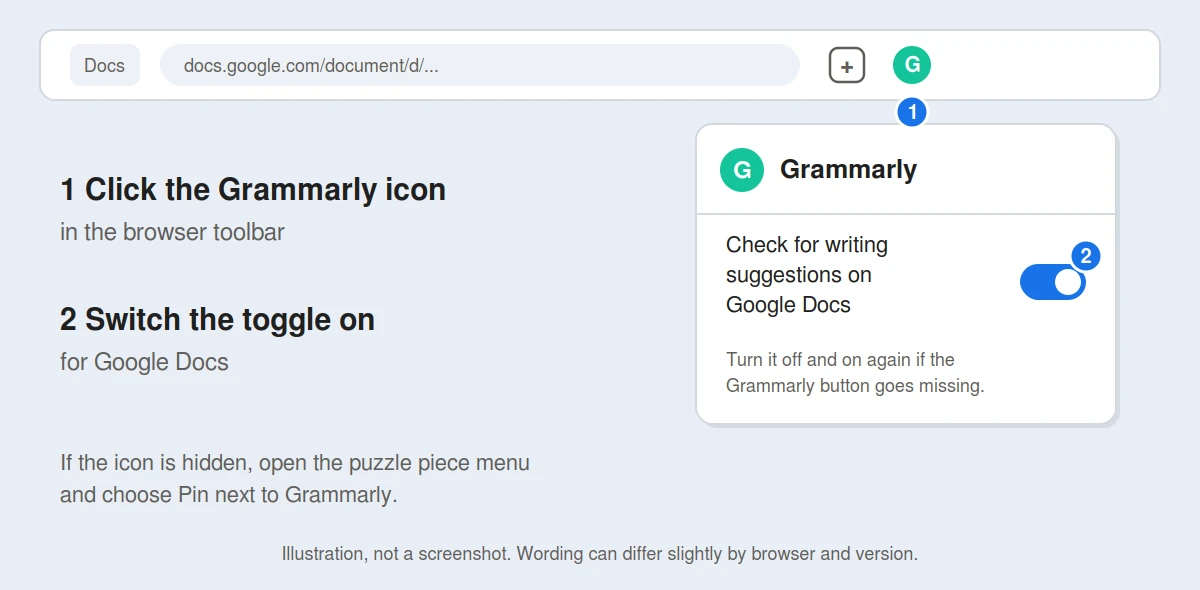
Installing the extension is not always enough. Google Docs has its own switch, and it can be off even when Grammarly works on other sites.
Open a new Google Doc, or open one you already have.
Click the Grammarly icon in your browser toolbar.
Find Check for writing suggestions on Google Docs and switch the toggle on.
Refresh the page.
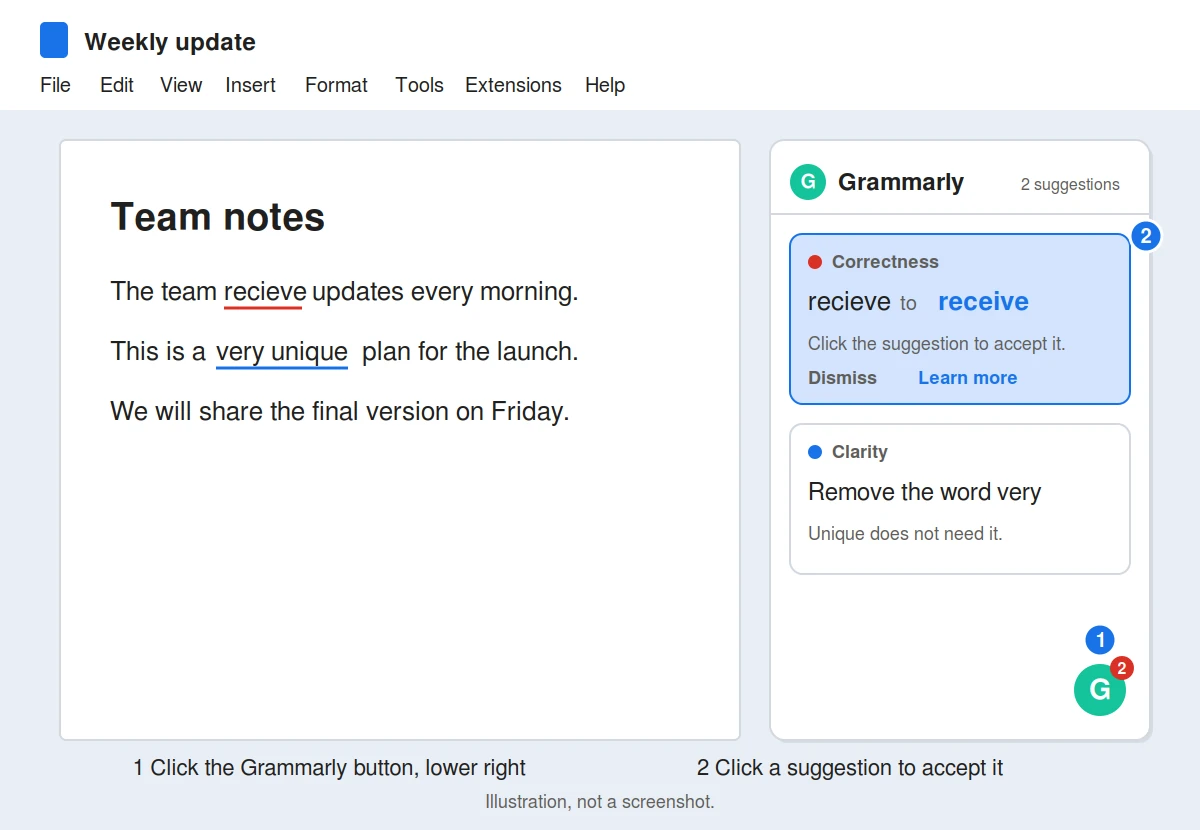
Look in the lower-right corner of the window for the Grammarly button. Click it to open the Grammarly sidebar.
That is how to enable Grammarly in Google Docs. If the button does not show up, jump to the troubleshooting section below.
 How to Use the Grammarly Sidebar in Google Docs
Once the sidebar is open, using it is simple.
Look for underlined text. A red underline usually points to a spelling or grammar mistake. A blue underline usually points to a clarity suggestion.
Accept a suggestion. Select the suggestion card in the sidebar, then click the proposed change.
Learn why. Click Learn more at the bottom of a suggestion to see the explanation.
Skip a suggestion. Use the dismiss option on the card if you disagree.
Suggestions appear in real time as you type, so you do not need to run a separate check.
 Grammarly Free vs Pro in Google Docs
Grammarly Pro is the plan that used to be called Premium. Most people can start with Free.
Feature | Free | Pro |
|---|---|---|
Spelling and grammar check | Yes | Yes |
Tone detection | Yes | Yes |
Full-sentence rewrites | No | Yes |
Tone adjustment | No | Yes |
Plagiarism checker | No | Yes |
Prices change by region, so check Grammarly's plans page before you pay. I would also check which Pro features appear inside Google Docs before upgrading.
Grammarly Google Docs Not Working: How to Troubleshoot
This is the section most people come for. Work through these in order.
Grammarly Widget Not Appearing in Google Docs
Click the Grammarly icon in your browser toolbar.
Switch Check for writing suggestions on Google Docs off, then switch it back on.
Refresh the Google Docs tab.
That is Grammarly's own fix for Chrome. If you use Firefox, Edge or Safari, Grammarly says to clear your browser cache instead.
If it still does not appear, make sure the extension is enabled, pinned, and allowed to run on Google Docs.
No Underlines in Google Docs
Grammarly lists a known compatibility problem with documents that contain footnotes and tables. Test it in a blank document first. If Grammarly works there, the problem is the document, not the extension.
Browser Extension Conflicts and Ad-Blocker Issues
Grammarly does not publish a list of conflicting extensions, so this is the method I use myself.
Turn off your other extensions one at a time. Start with ad blockers and other writing or spelling tools.
Open a fresh Google Doc after each one and check whether the Grammarly button comes back.
If you find the one causing trouble, leave it off or use it in a different browser profile.
Also check your browser. If you are on Opera or Brave, switch to Chrome, Edge, Firefox or Safari.
As a last step, remove Grammarly from your extensions page and install it again from the store.
Grammarly Slows Down Google Docs
Grammarly lists this as a known issue. For a very long document, switch the Google Docs toggle off while you write, then switch it on for a final check.
How to Turn Off Grammarly in Google Docs
Click the Grammarly icon in your toolbar and switch Check for writing suggestions on Google Docs off. Switch it on again when you want it back.
One honest note. I did not find an official switch that turns Grammarly off for a single document. The toggle covers Google Docs as a whole. If you need one document without Grammarly, turn the toggle off before you open it, or open it in a browser profile that does not have the extension.
Frequently Asked Questions
How do I enable Grammarly in Google Docs?
Click the Grammarly icon in your browser toolbar and switch on Check for writing suggestions on Google Docs. Then refresh the page.
Do I need an account to use Grammarly in Google Docs?
After you install the extension, Grammarly asks you to sign in or create an account. A free account is enough to get started.
Does Grammarly work in Google Slides?
No. Grammarly says Google Slides is not currently supported. For Google Sheets, Grammarly points you to its desktop app.
Does Grammarly work in Safari, Firefox and Edge?
Yes. All three have a Grammarly browser extension. Safari is off by default, so click it to enable it.
Can I use Grammarly in the Google Docs app on my phone?
Not through the browser extension, because extensions cannot run inside the phone apps. Use Google Docs in a desktop browser for Grammarly.
Why is the Grammarly button missing in Google Docs?
The Google Docs toggle is usually off. Switch it off and on again, then refresh. The troubleshooting section above covers the other causes.
Final Thoughts
The whole setup comes down to two steps. Install the browser extension, then switch on the Google Docs toggle.
If something goes wrong, that same toggle is the first thing I check.
If you like free browser extensions that save time, our Similarweb traffic checker guide covers one for checking any website's traffic.