


Select your text and press Ctrl + , on Windows or a Chromebook, or ⌘ + , on a Mac. That is subscript done.
If you wanted superscript instead, it is Ctrl + . or ⌘ + ., the full stop rather than the comma.
That is the answer, and you can close the tab. What follows is everything else worth knowing about how to add subscript in Google Docs: four other ways to insert subscript, how to type subscript as you go rather than fixing it afterwards, the reason several popular guides print the wrong Google Docs subscript shortcut, and one distinction that quietly breaks document search for a lot of people.
The fastest way: how to add subscript in Google Docs in three steps
This is how to do subscript in Google Docs in the time it takes to read it, and it works the same in Chrome, Edge, Safari and Firefox.
Highlight the character or characters you want lowered. For H2O, that is just the 2.
Press Ctrl and the comma key together. On a Mac, Command and comma.
The text drops below the baseline and shrinks. That is it.
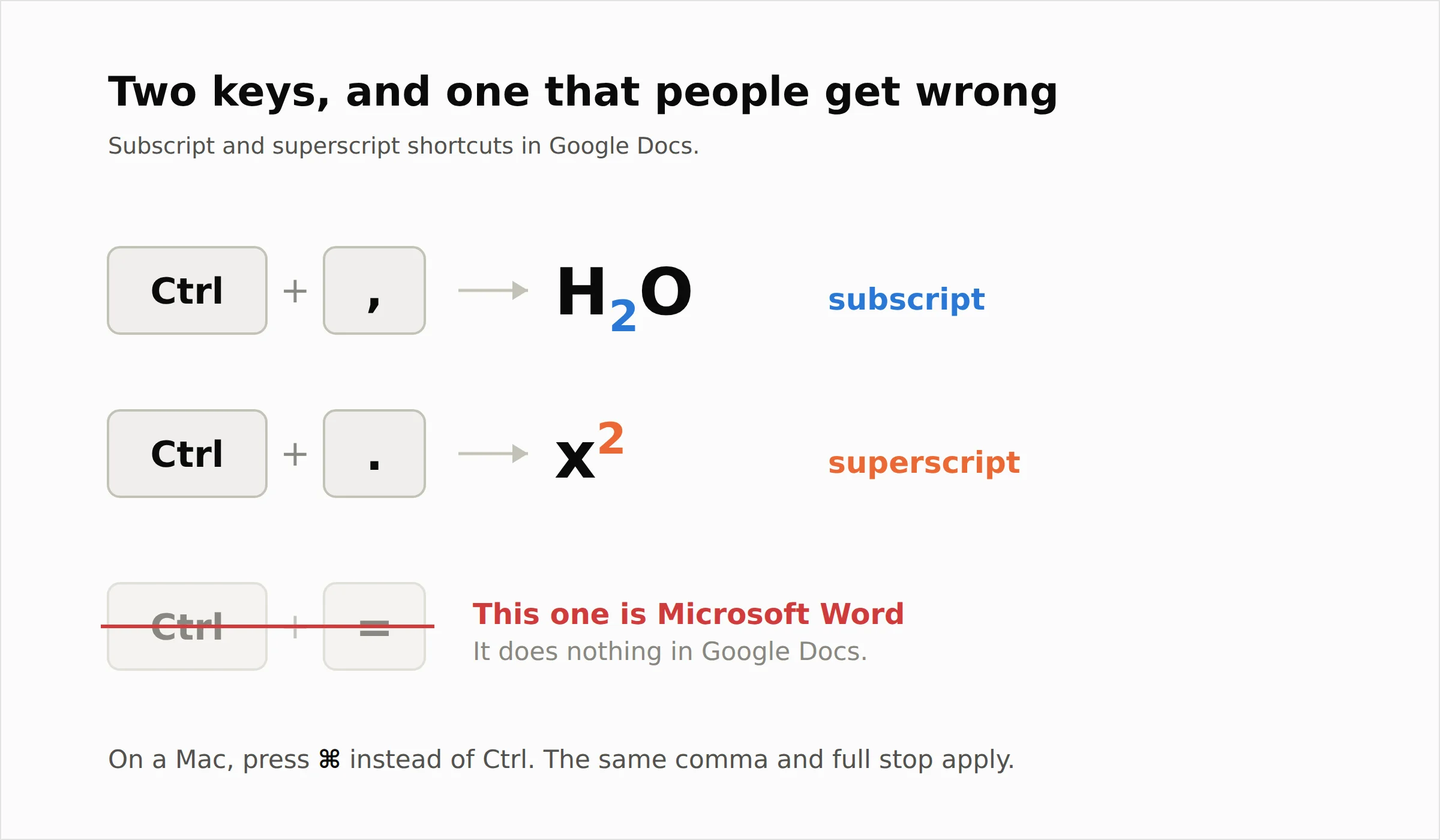 The shortcut is a toggle. Pressing it again on the same selection turns the subscript back off, which is also the fastest way to undo it.
I checked this against Google's own keyboard shortcuts page rather than taking anyone's word for it, and both pairs are listed there under text formatting.
The wrong shortcut sitting on a top result
This is the bit that made me want to write the article, because it is a small error in a place a lot of people will land first.
One of the guides ranking for this search, on a domain with enormous authority, tells you to press Ctrl + = for subscript. That shortcut is Microsoft Word's. In Word, Ctrl and equals gives you subscript and Ctrl, Shift and equals gives you superscript. In Google Docs it does nothing at all.
I want to be fair about how widespread this is, because I checked rather than assumed. Of the three ranking pages I read properly, two give the correct comma shortcut and one gives Word's. So it is not universal, it is one wrong page in a prominent position.
My guess at how it happened is simple, and it is a guess rather than something I can prove. Someone wrote a Word tutorial, someone else adapted it for Docs, and nobody opened a document to check.
That pattern is not unique to this topic. When I looked at what the standard big data explainers still teach, the same thing had happened on a much larger scale, with widely cited pages still presenting a software stack that has since been formally retired. Explainer content ages badly because refreshing it properly is slower than copying it.
So the practical advice is boring but real. For anything you are about to rely on in a document, check the vendor's own help page. It takes thirty seconds and it is the only source that cannot be out of date about its own product.
Method two: the Format menu, if you prefer clicking
The menu route does exactly the same thing and is easier to remember if you use it rarely.
Select your text, then go to Format in the top menu bar, hover over Text, and click Subscript. The full path is Format > Text > Subscript, and superscript sits directly above it in the same submenu.
The menu also shows you the keyboard shortcut next to each option, which is a decent way to learn it. Worth noting that the Format menu is where you will find clear formatting, bold, italic and the rest, so it is the one menu genuinely worth knowing in Google Docs.
I use the menu when I am formatting one thing and the shortcut when I am formatting twenty. There is no difference in the result.
Method three: type it in subscript rather than fixing it afterwards
This is the habit I would actually recommend, and almost nobody teaches it.
Instead of typing H2O and then going back to select the 2, put your cursor where the subscript starts, press Ctrl and comma, type the 2, then press Ctrl and comma again to turn it off. Carry on typing normally.
It sounds like the same number of actions. It is not, because you skip the selecting, which is the slow and fiddly part, especially with single characters.
For anyone writing chemical formulas, molecular formulas or footnote markers all day, this one change saves more time than every other tip in this article combined. Once it is muscle memory you stop thinking about it.
Method four: special characters, and why I rarely use them
Google Docs has a character picker at Insert then Special characters. You can draw a symbol in the sketch box or search by name, and there are dedicated subscript characters in there, including subscript digits like ₀ through ₉.
These are genuinely useful for symbols you cannot otherwise type, such as the degree sign, Greek letters like β, or arrows. For plain subscript numbers, I would skip them, and the reason is in the Unicode section further down.
The short version is that a subscript character and subscripted text are two different things, and only one of them behaves the way you expect.
Method five: the equation editor for real maths
If you are writing actual mathematics rather than the occasional formula, the equation editor is the better tool.
Go to Insert then Equation. The path is Insert > Equation, a toolbar appears, and inside the equation box the rules change. Press Shift and the minus key for a subscript and Shift and 6, the caret, for a superscript. Type your character, then press the right arrow to come back out of it.
The advantage is that equations handle nesting, fractions and operators properly, so x subscript 1 superscript 2 renders the way a mathematician expects rather than as a formatting accident.
The disadvantage is that an equation is an object rather than text. Your document search will not find it, and it does not always survive conversion to other formats cleanly. I use it for genuine equations and never for a one off formula in a sentence.
How to do subscript in the Google Docs mobile app
You can do this on a phone, which surprises people, because several guides skip mobile entirely.
Open your document in the Google Docs app on Android or iOS. Double tap the character you want and drag the selection handles to get it exactly right, which is the hardest part on a small screen. Tap the A with lines formatting icon in the top bar, make sure you are on the Text tab, and you will find X₂ and X² buttons. Tap X₂ for subscript.
It works identically on Android and iPhone. My honest view is that it is fine for a quick correction and miserable for writing anything with formulas in it, purely because character level selection on a touchscreen is painful.
If you have a Bluetooth keyboard attached to a tablet, the desktop shortcut usually works, which is a far better experience.
How to remove subscript in Google Docs
I had to go looking for this one, because almost nobody covers it, and it comes up constantly when someone pastes text in and it arrives already formatted.
There are three ways, in order of how much they remove.
Toggle it off. Select the subscripted text and press Ctrl and comma again. This removes only the subscript and leaves bold, colour, font and everything else alone. It is almost always what you want.
Use the menu. Format, then Text, then Subscript. The tick next to it disappears.
Clear all formatting. Press Ctrl + on Windows or ⌘ + on a Mac, or use Format then Clear formatting. This strips everything back to the default style, so it removes your bold and your links too. Useful after pasting from a website, heavy handed otherwise.
Pasted text is where most of this trouble starts. Paste with Ctrl + Shift + V rather than plain Ctrl + V and you get the words without any of their original formatting, which saves the cleanup entirely.
Real subscript against Unicode characters, which is the thing nobody mentions
This is the most useful thing in the article and I have not seen a single page on this keyword cover it.
There are two different ways to get a small lowered 2 on your screen, and they are not interchangeable.
Subscript formatting is a text attribute. The character is still an ordinary 2, and Google Docs is simply drawing it smaller and lower. The underlying text of H₂O is still "H2O".
A Unicode subscript character is a completely different character. The ₂ in H₂O typed from the special characters picker is not the digit 2 at all. It is its own codepoint.
Here is why that matters. Press Ctrl and F and search your document for "H2O". With subscript formatting, it finds every instance. With Unicode subscript characters, it finds none of them, because you are searching for a 2 and the document contains something else entirely.
The same applies to find and replace, to spellcheck, to accessibility tools and screen readers that read your document aloud, and to anything that processes the text later. Unicode subscripts also only exist for a limited set of characters, so they fail the moment you need a letter or a symbol that has no subscript version.
My rule is straightforward. Use real subscript formatting for anything that is part of your writing. Use Unicode characters only when you need a symbol that formatting cannot produce, or when you are pasting into somewhere that strips formatting entirely, such as a plain text field or a social media post.
The substitutions trick for formulas you type all the time
This is my favourite setting in Google Docs and I have never seen it recommended for this particular job. If you write the same chemical formulas repeatedly, Docs can do the formatting for you automatically.
Go to Tools, then Preferences, then the Substitutions tab. You will see a list of existing swaps, which is where the automatic conversion of straight quotes to curly ones lives.
Add your own. Put a trigger in the left column, something you would never type by accident such as h2o, and the formatted version in the right column. The trick is to format the replacement text in your document first, copy it, then paste it into the box so it carries its formatting with it.
Now typing your trigger and pressing space produces the properly formatted version. For a chemistry teacher writing worksheets or a lab technician writing reports, this turns a repeated chore into nothing.
It is also the setting to check if Docs is changing something you did not want changed, since every automatic substitution it performs is listed there and can be switched off.
What happens when you export or paste
Formatting survives some journeys and not others, and it is worth knowing which before you send something important.
Exporting to Word or PDF keeps subscript formatting intact. It is a standard attribute and both formats support it.
Pasting into email usually works if you are composing in a rich text editor such as Gmail, and fails if the recipient reads in plain text.
Pasting into a plain text field, a code editor, or anywhere that does not carry formatting will flatten H₂O to H2O. This is the one case where Unicode characters genuinely win.
Equations are the least portable of all, since they are objects rather than text, so check them after any conversion rather than assuming.
I would always open the exported file once before sending it anywhere that matters. It takes ten seconds and I have been caught out often enough to have learned.
Why subscript might not be working
A few things go wrong, and in my experience they are all quick to diagnose.
Nothing is selected. The shortcut needs either a selection or a cursor position. With nothing selected it toggles the mode for whatever you type next, which can look like nothing happened.
Your browser stole the shortcut. Some extensions and some browsers bind Ctrl and comma to their own settings. Chrome on some systems opens preferences. If the shortcut does nothing, use the Format menu instead and the problem is confirmed.
You are in a heading style. Subscript applies fine, but inside a large heading the size difference is less obvious than you expect.
You are inside an equation box. The normal shortcut does not apply there. Use Shift and minus instead.
You are using Ctrl and equals. Covered above, and the single most common cause.
Frequently asked questions
What is the shortcut for subscript in Google Docs?
Ctrl and the comma key on Windows and Chromebook, Command and comma on a Mac. Superscript is Ctrl and the full stop, or Command and the full stop. Both are toggles, so pressing them again removes the formatting.
How do I type H2O in Google Docs?
Type H, press Ctrl and comma, type 2, press Ctrl and comma again, then type O. Turning subscript on before typing is faster than typing H2O and going back to select the 2.
How do I do subscript and superscript in Google Docs at the same time?
You cannot apply both to the same character, since they move it in opposite directions. For something like an isotope notation that needs both, use the equation editor, which is built to stack them correctly.
Can I add subscript on the Google Docs mobile app?
Yes. Select the character, tap the formatting icon that looks like a capital A with lines, go to the Text tab, and tap the X₂ button. It works the same on Android and iOS.
How do I remove subscript in Google Docs?
Select the text and press the same shortcut again, which toggles it off and leaves other formatting alone. Alternatively use Format, Text, Subscript, or clear every attribute at once with Ctrl and backslash.
Why is my subscript shortcut not working?
The most common reason is that you are pressing Ctrl and equals, which is the Microsoft Word shortcut and does nothing in Google Docs. Otherwise check that you have text selected, that you are not inside an equation box, and that a browser extension has not claimed the key combination.
What is the difference between subscript and superscript?
Subscript sits below the baseline and is used for chemical formulas such as CO₂ and for variable indices. Superscript sits above it and is used for exponents, ordinal endings, footnote markers, and symbols such as the trademark and registered signs.
Does subscript formatting survive export to Word or PDF?
Yes. Subscript is a standard text attribute that both formats support, so it comes through intact. Equations created in the equation editor are objects rather than text and are the ones worth checking after any conversion.
Should I use special characters instead of subscript formatting?
Usually not. A Unicode subscript character is a different character from the digit it resembles, so searching your document for H2O will not find H₂O written that way. Keep Unicode subscripts for plain text destinations that strip formatting.
How do I do subscript inside a Google Docs equation?
Insert an equation with Insert then Equation, then press Shift and the minus key for subscript or Shift and 6 for superscript. Type your character and press the right arrow key to move back out to the main line.
Can I set up automatic subscript for formulas I use often?
Yes, through Tools, Preferences, Substitutions. Format the text the way you want it, copy it, then paste it as the replacement for a trigger you would never type by accident. Typing the trigger and pressing space inserts the formatted version.
Does subscript work in Google Slides and Sheets?
Slides uses the same Ctrl and comma shortcut and has the same Format menu path. Google Sheets does not support subscript formatting in cells at all, so Unicode characters are the only option there.
The habit that saves the most time
If you take one thing from this, make it the toggle rather than the shortcut itself.
Pressing Ctrl and comma before you type, typing the character, then pressing it again to come back up is a small change that removes the selecting step entirely. Everything else here is a fallback for when that is not available, such as on a phone, or not appropriate, such as inside a real equation.
And when a guide tells you a shortcut, try it in the application before you build a habit on it. The Ctrl and equals error has sat on well ranked pages for years, and the only reason I can tell you it is wrong is that I opened Google's own documentation instead of trusting a summary of it.
That check is worth running on any roundup you read. It is more or less what I concluded after going through what the construction software comparison pages leave out, where none of the top results had read the contract they were all describing.
Thirty seconds on a vendor's help page beats a confidently written paragraph every time.