


The best design software for beginners is Canva if you want quick social posts, flyers and presentations from templates. Pick Figma if you want to design apps or websites, Affinity if you want free, professional-level design on a desktop, and Photopea or Pixlr if you want to edit images in your browser without making an account.
There's no single winner, because "design" covers very different jobs. Making an Instagram post, editing a photo, drawing a logo and designing an app screen each need a different kind of tool.
So instead of ranking ten apps as if they all do the same thing, I sorted them by what you want to make. I also opened each browser-based tool as a brand-new visitor, with no account, to see what really happens on day one.
First, what do you want to make?
Answer this before you download anything. It saves hours.
Social posts, flyers, invitations, presentations: a template tool. Start with Canva, Adobe Express or VistaCreate.
Photo edits, cutouts, retouching: a raster (pixel) editor. Start with Photopea, Pixlr or GIMP.
Logos, icons, anything that must scale cleanly: a vector editor. Start with Inkscape or Affinity.
App screens, website layouts, wireframes: a UI design tool. Start with Figma.
Drawing and digital painting: an illustration app. Start with Krita.
A quick note on two terms you'll see everywhere. Raster images are made of pixels, like photos, and get blurry when you blow them up. Vector graphics are made of shapes and lines, so a vector logo looks sharp on a business card and on a billboard.
What happened when I tried them as a total beginner
On November 3, 2026, I opened the browser-based tools on this list in Chrome on Windows, without logging in, and tried the same small job in each one: start a 1080 × 1080 px square post and add a headline.
Most tools stop you at a sign-up screen
This was the first thing I noticed. Canva, Adobe Express and Figma all sent me straight to a sign-up or log-in page as soon as I tried to start a design. On VistaCreate, the "Start designing" button didn't respond at all for me until I'd have made an account.
Only Photopea and Pixlr let me open a blank canvas, add text and reach the export screen with no account at all.
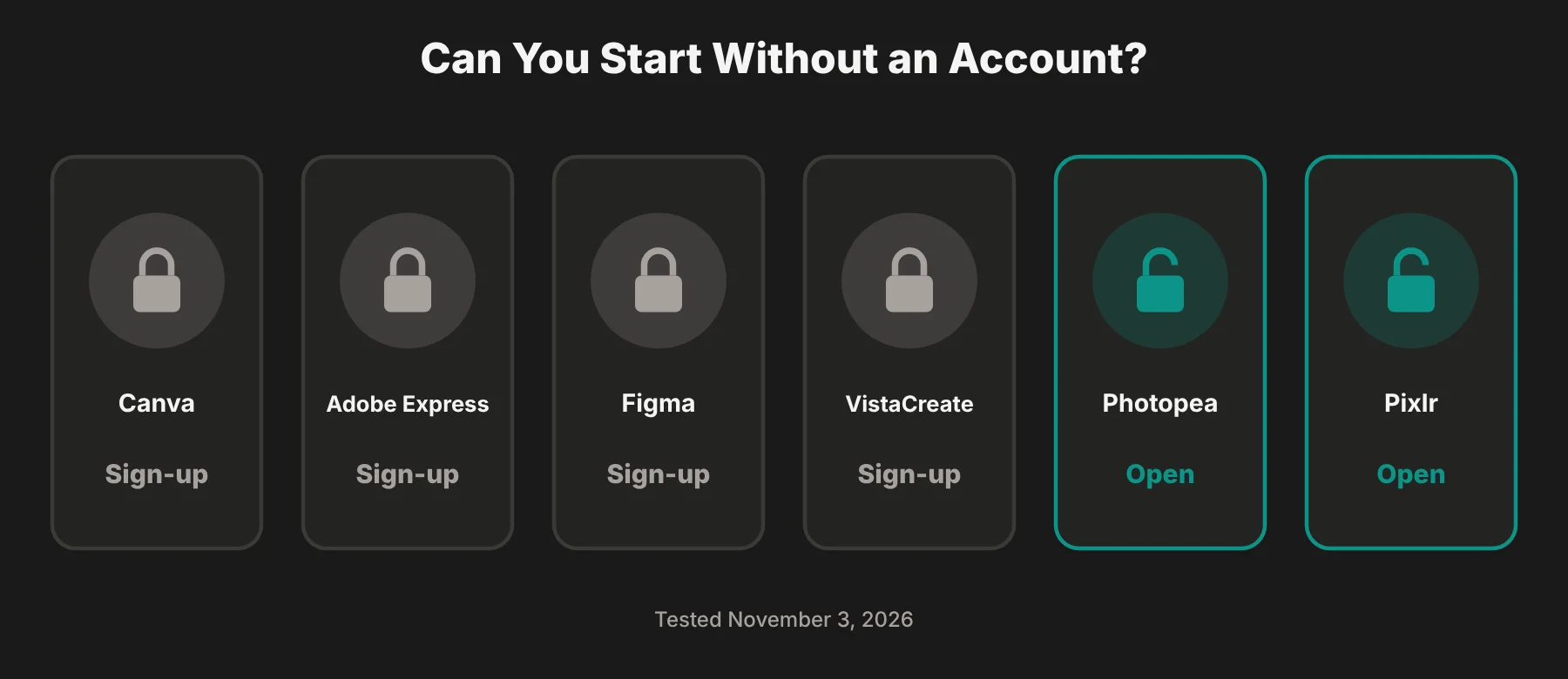 Signing up for Canva or Adobe Express is free and quick, so this isn't a deal-breaker. But if you're a student on a shared computer, or you just want to fix one image right now, it matters.
Pixlr was the fastest to a decent-looking result
In Pixlr Express, I clicked Create new, picked the Social Media Post (1080 × 1080) preset, opened the Text panel and clicked a ready-made "SALE" text style.
That's it. A styled, centered headline appeared on my canvas, and the Save button offered JPG, PNG, WebP and PDF, no login needed.
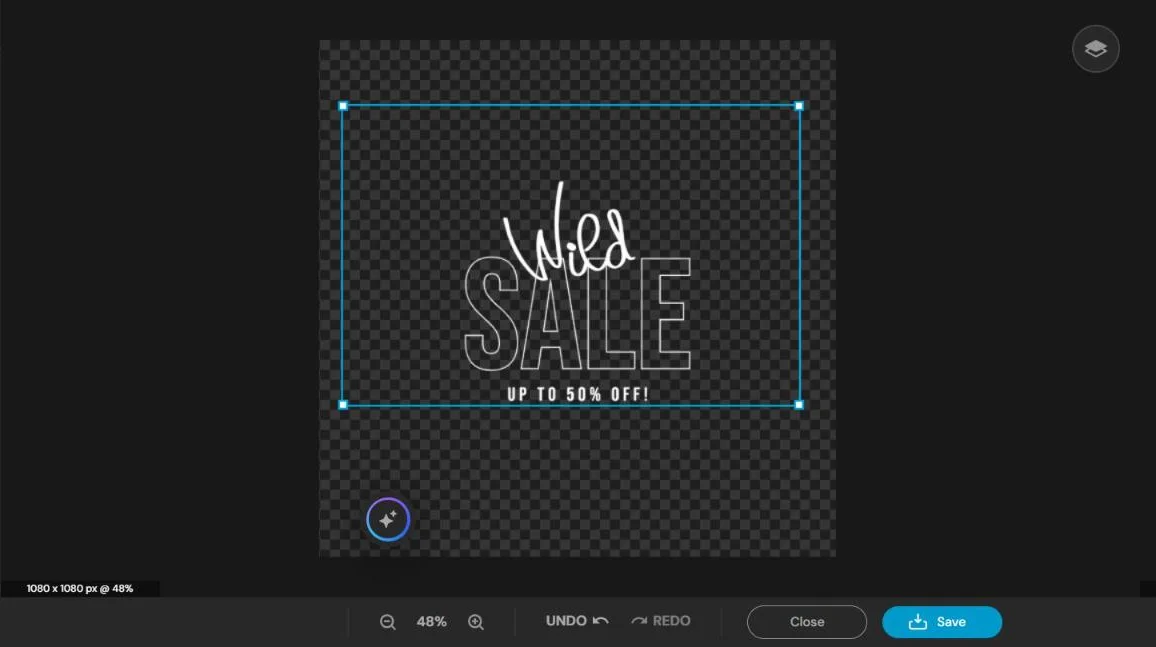 You do have to get past a cookie banner and a "What's new" popup first, but after that it's very friendly.
Photopea is powerful but assumes you know Photoshop
Photopea's editor loaded in about six seconds with no sign-up. It has a handy list of size presets (Instagram, Story, YouTube thumbnail and more), and creating my square canvas took two clicks.
Then I hit the kind of snag that trips up real beginners. My first headline came out at 24 px, which is tiny on a 1080 px canvas. When I changed it to 120 px, the text ran right off the edge, and I had to move and resize it by hand.
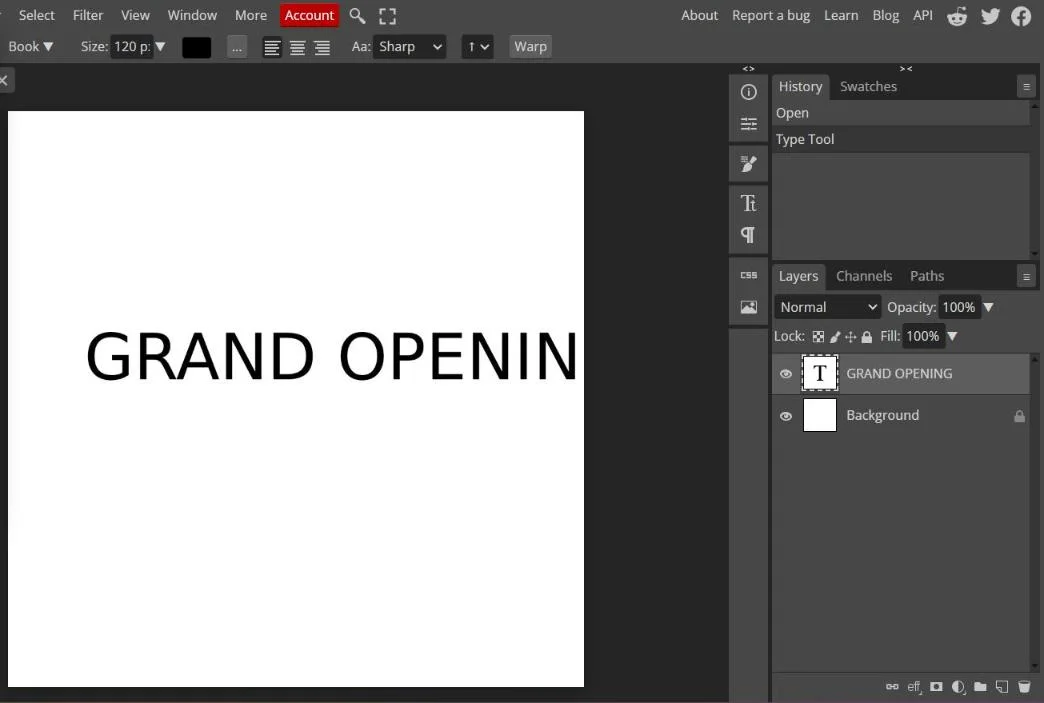 That's normal for a Photoshop-style editor. It gives you full control, but it doesn't center or size things for you the way Canva or Pixlr do. Ads also take up the right side of the screen unless you pay to remove them.
What I couldn't test
I didn't create accounts, so I couldn't build a full design inside Canva, Adobe Express, Figma or VistaCreate. For those tools, I've relied on their official pricing pages, feature lists and help docs. I also didn't install the desktop apps (Affinity, GIMP, Inkscape and Krita) on this computer, so those notes come from their official sites and release notes.
The 10 best design software for beginners
Here's the full list, grouped by the kind of design each tool is best at.
1. Canva
Best for: complete beginners making social posts, flyers, presentations and simple branding Price: free plan; Canva Pro about $18 a month or $180 a year Account needed: yes, free sign-up
Canva is the easiest place to start, in my view. You pick a template, swap the text and photos with a drag-and-drop editor, and download. It has a huge library of pre-designed templates, fonts, photos and graphic elements, and the free plan is genuinely usable.
Where beginners get stuck: many of the nicest templates and elements are Pro-only, marked with a crown. It's also easy to rely on templates and never learn design principles like visual hierarchy, contrast and white space.
Good to know: if you're stuck swapping photos inside a template, I wrote a step-by-step guide on how to replace an image in Canva.
2. Adobe Express
Best for: beginners who want templates plus a path into Adobe's world Price: free plan; Premium $9.99 a month Account needed: yes, free Adobe account
Adobe Express is Adobe's answer to Canva. It has templates, quick actions like background removal, and Firefly AI tools for text effects and images. The free plan includes daily free AI generations, while Premium adds 250 generative credits a month, brand kits and one-click resizing.
Where beginners get stuck: fewer free templates than Canva, and the Adobe sign-in flow can feel heavier.
Pick it over Canva if: you plan to learn Photoshop or Illustrator later, or you already pay for Adobe apps.
3. VistaCreate
Best for: small businesses making marketing graphics and simple animations Price: free Starter plan; Pro about $10 a month billed yearly ($13 monthly) Account needed: yes
VistaCreate (formerly Crello) is another template-first tool, with a focus on small-business marketing graphics, product visuals and animated posts. Pro is a little cheaper than Canva Pro.
Where beginners get stuck: in my test, the "Start designing" button on the homepage didn't open anything until I'd sign up. It's a smaller ecosystem than Canva, with fewer tutorials.
4. Figma
Best for: beginners who want to design apps, websites, wireframes and prototypes Price: free Starter plan; Professional from $16 per Full seat a month Account needed: yes
Figma is the industry standard for UI and UX design, and it's surprisingly beginner-friendly once you understand frames and layers. The free Starter plan gives you unlimited drafts, templates and UI kits, plus a daily allowance of AI credits.
Where beginners get stuck: Figma isn't built for flyers or photo editing. Concepts like auto layout and components take a few hours of tutorials to click.
Pick it if: you're interested in product design or web design as a career. Learning Figma early is one of the most practical design skills you can build.
Photo editing
5. Photopea
Best for: free, Photoshop-style photo editing in the browser Price: free with ads; Premium removes ads (shown in the app as €15 for three months when I tested) Account needed: no
Photopea runs in your browser and works on your own device, so your files aren't uploaded. It opens PSD, AI, XD, Sketch, Figma and many other files, and it has layers, masks, filters and most of Photoshop's core tools.
Where beginners get stuck: as my test showed, it gives you full control but no hand-holding. Expect to watch a few tutorials.
Pick it if: you want to learn real photo editing skills for free, or you need to open a PSD without paying for Photoshop.
6. Pixlr
Best for: quick, friendly photo edits and simple social graphics Price: free with limits; Plus from $1.99 a month, Premium from $7.99 a month (billed yearly) Account needed: no, for basic use
Pixlr has two editors: Pixlr Express for quick, guided edits and Pixlr Editor for layer-based work. It also has AI tools like background removal and an image generator.
Where beginners get stuck: popups and ads on the free version, and AI features use credits.
Pick it if: you want the easiest no-account option. It was the quickest tool in my test.
7. GIMP
Best for: free, open-source photo editing on your desktop Price: free Account needed: no
GIMP is the long-standing free alternative to Photoshop. The big GIMP 3 update modernized the interface and added non-destructive filters, and version 3.2.6 was released in September 2026.
Where beginners get stuck: menus and terms don't always match Photoshop, so tutorials for one don't always work for the other.
Pick it if: you want powerful photo editing that works offline and costs nothing forever.
8. Inkscape
Best for: free vector design, like logos, icons and illustrations Price: free and open source Account needed: no
Inkscape is a free alternative to Adobe Illustrator. It uses the SVG format and has the pen tool, shape tools, text on paths and everything you need to build a clean logo.
Where beginners get stuck: vector tools like Bézier curves and node editing feel strange at first. The interface is busy compared with Canva.
Pick it if: you want to learn proper logo design without paying.
9. Affinity
Best for: beginners who want free, professional-level design software on Mac or Windows Price: free, with a free Canva account; AI features need a paid Canva plan Account needed: yes, a Canva account
This is the biggest change in beginner design software in years. In late 2025, Canva relaunched Affinity as one free app that combines photo editing, vector design and page layout, the jobs that used to be split across Affinity Photo, Designer and Publisher.
You need a free Canva account to use it, and Canva's paid subscribers also get AI tools inside it, like generative fill and background removal, according to MacRumors' report on the launch.
Where beginners get stuck: it's a real professional tool, so the learning curve is steeper than Canva's.
Pick it if: you've outgrown Canva and want to learn pro-level skills without paying for Adobe. Its page layout tools also make it one of the InDesign alternatives I've compared for brochures and magazines.
10. Krita
Best for: digital drawing and painting Price: free and open source Account needed: no
Krita is built for artists. It has excellent brushes, layers and drawing tablet support, and it's used for comics, concept art and illustration. Version 5.3.4 and the new 6.0 line were released in September 2026.
Where beginners get stuck: it's made for drawing, not layouts or text-heavy designs. You'll want a drawing tablet to get the most out of it.
Pick it if: you want to draw, not arrange templates.
Side-by-side comparison
# | Software | Best for | Free option | Paid from | Account to start | Platforms |
|---|---|---|---|---|---|---|
1 | Canva | Templates, social posts | Free plan | ~$15/mo (yearly) | Yes | Browser, desktop, mobile |
2 | Adobe Express | Templates + Adobe AI | Free plan | $9.99/mo | Yes | Browser, mobile |
3 | VistaCreate | Marketing graphics | Free Starter | $10/mo (yearly) | Yes | Browser, mobile |
4 | Figma | UI/UX design | Free Starter | $16/seat/mo | Yes | Browser, desktop |
5 | Photopea | Photo editing | Free with ads | Ad-free Premium | No | Browser |
6 | Pixlr | Quick photo edits | Free with limits | $1.99/mo (yearly) | No | Browser, mobile |
7 | GIMP | Desktop photo editing | Fully free | None | No | Windows, Mac, Linux |
8 | Inkscape | Vector, logos | Fully free | None | No | Windows, Mac, Linux |
9 | Affinity | Pro design all-in-one | Free | Canva plan for AI | Yes (Canva) | Windows, Mac |
10 | Krita | Drawing, painting | Fully free | None | No | Windows, Mac, Linux, Android |
How hard is each one to learn?
Here's how I'd place them on the ease-versus-power scale.
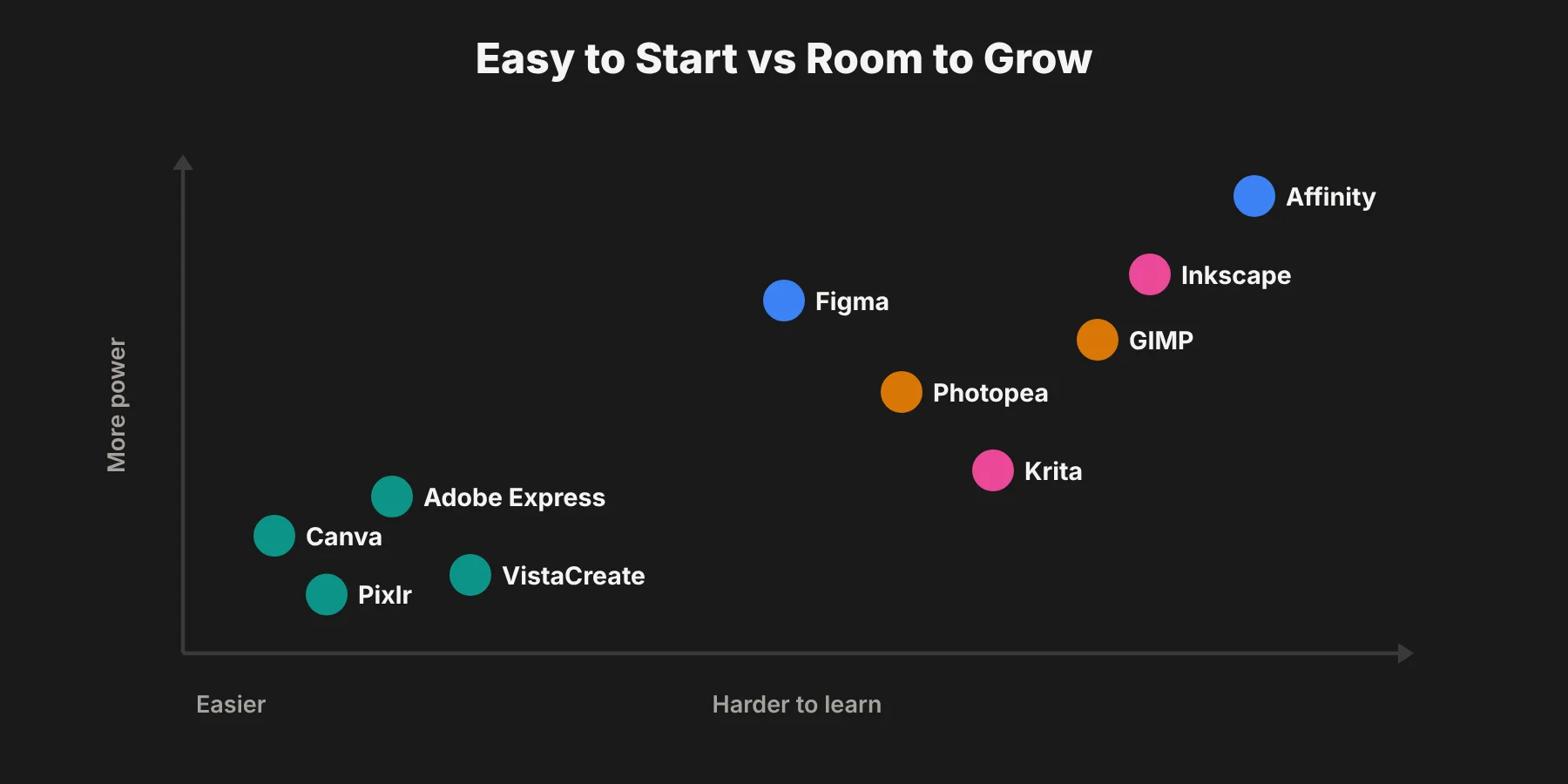 The tools on the left get you a finished result fastest. The ones on the right take longer to learn but let you do almost anything.
My advice for most beginners: start with one easy tool so you finish real projects and stay motivated, then add one "real" tool from the right side to build skills. For example, Canva plus Figma, or Pixlr plus Affinity.
Best free design software for beginners
If you don't want to pay anything, you have two kinds of free:
Free plans of paid tools (Canva, Adobe Express, VistaCreate, Figma, Pixlr). These are easy and polished, but some templates, elements and AI features are locked behind upgrades.
Fully free tools (GIMP, Inkscape, Krita, Affinity, and Photopea with ads). Nothing is locked, but they take longer to learn and have fewer ready-made templates.
My picks for free:
Easiest free start: Canva Free
Free with no account: Pixlr or Photopea
Free professional desktop app: Affinity
Free logos: Inkscape
Free drawing: Krita
Free vs paid design software: when to pay
I'd only pay once you hit a real limit, not before. Here's when upgrading makes sense:
You keep reaching for Pro-only templates or elements in Canva.
You need brand kits to keep colors, fonts and logos consistent for a business.
You use AI tools like background removal every week.
You work with a team and need shared folders or real-time collaboration.
If you're learning for a career, free tools are usually enough for the first months. Pay when the time it saves is worth more than the subscription.
Can you learn graphic design with no experience?
Yes. Software is the easy part. What makes a design look good is a handful of basic design principles:
Visual hierarchy: make the most important thing the biggest or boldest.
Contrast: dark text on light backgrounds, or the reverse.
Alignment: line things up, don't scatter them.
White space: leave room to breathe.
Typography: use one or two fonts, not five.
Color: stick to a small color palette.
A good first-week practice plan:
Day 1: recreate a poster you like using a template tool.
Day 2: design an Instagram post for a pretend coffee shop.
Day 3: remove the background from a product photo.
Day 4: draw a simple logo using only shapes.
Day 5: design one mobile app screen in Figma.
Day 6: redo Day 2 without a template.
Day 7: put your three best pieces in a simple portfolio.
Mistakes I'd avoid as a beginner
Picking a tool before picking the job. A logo, a photo edit and an app screen need different tools.
Starting with the hardest software. Jumping straight into a pro tool can kill your motivation before you finish anything.
Paying for a year on day one. Use the free plan for a few weeks first.
Only using templates. They're great for speed, but practice a few designs from scratch to learn layout.
Making logos in a raster editor. Use a vector tool like Inkscape or Affinity so your logo stays sharp at any size.
Beginner design software questions
What is the easiest design software for beginners?
Canva is the easiest for most beginners because you start from ready-made templates and edit with drag and drop. If you don't want to make an account, Pixlr was the easiest no-sign-up tool in my test.
What is the best free design software for beginners?
Canva Free is the best free starting point for templates. For fully free tools with nothing locked, Affinity (with a free Canva account), GIMP, Inkscape and Krita are the strongest choices.
Is Canva good for learning graphic design?
Canva is good for learning layout and color basics and for finishing real projects quickly. To build deeper skills like vector drawing or photo retouching, pair it with a tool like Affinity, Inkscape or Photopea.
Canva or Adobe Express: which is better for beginners?
Canva has more templates and a more generous free plan, so I'd start there. Adobe Express is a good choice if you want Adobe's Firefly AI tools or plan to move on to Photoshop and Illustrator.
Is Figma suitable for beginners?
Yes, for app and website design. Figma's free Starter plan and its large library of tutorials make it beginner-friendly, but it isn't the right tool for flyers or photo editing.
What is the best free alternative to Photoshop?
Photopea is the closest free alternative in your browser, since it looks and works like Photoshop and opens PSD files. GIMP and Affinity are the best free desktop alternatives.
What software is best for designing a logo?
A vector editor is best for logos. Inkscape and Affinity are both free and produce logos that stay sharp at any size.
What's the difference between vector and raster design software?
Raster software edits pixels, which suits photos but blurs when enlarged. Vector software uses shapes and paths, which stay sharp at any size, so it's better for logos, icons and illustrations.
My bottom line
If you're brand new, I'd start with Canva for quick wins and add one skill-building tool based on your goal: Figma for app and web design, Affinity for all-round professional design, or Krita for drawing. If you just need to fix an image right now without an account, open Pixlr or Photopea.
The best design software for beginners is the one you'll actually open every day. Pick one, finish five small projects, and only then think about upgrading.